



My other two postings about PDF presets?Choosing the Right PDF Preset and Creating PDF: Export or Use Distiller were very popular, based on the number of comments. I had promised a third posting on customizing PDF presets, but it got delayed. Here it is, better late than never!
While you may choose the built-in default PDF presets in InDesign most of the time, undoubtedly you’ll want to customize them for your work. I won’t go into all the different ways you could customize them: I’ll just give you a couple of examples of customized presets that I use: (1) Whenever I want to export interactive PDF files from InDesign with bookmarks, hyperlinks, or multimedia, I use a preset I named “High Quality_Interactive” which turns on the checkboxes for Bookmarks, Hyperlinks, and Interactive Elements” on the General panel. (2) When exporting a PDF for print, sometimes the printer prefers receiving a PDF with printer’s marks, so I’ve set up another PDF preset called “PDF-X_PrintersMarks” which starts with the PDF/X-1a setting and turns on the All Printer’s Marks option on the Marks and Bleeds panel. What options you choose to customize, of course, depends on your workflow. Saving a customized preset is more efficient, and ensures that you always pick the right options.
How to create a PDF preset. The easiest way to create a PDF preset in InDesign is from the Export Adobe PDF dialog box. Start with one of the built-in presets, and customize any of the options you need. Then click the Save Preset button at the bottom of the dialog box.
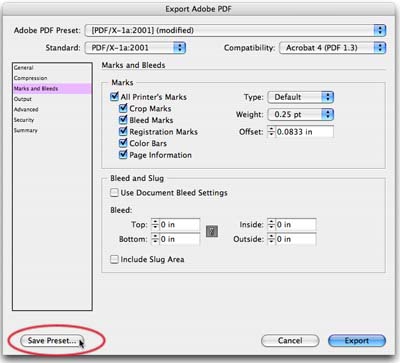
You’ll be prompted for a name for the PDF preset you’re creating. All you have to do is click OK. The new preset will always be saved in the default location, which we’ll explain in a moment. You’ll now see the new preset appear in the list at the top of the dialog box.

Selecting and managing your PDF presets. In addition to being able to select your new preset from the Export Adobe PDF dialog, you can also now select it from the File menu, then select Adobe PDF Presets, and the preset you created. Making this choice opens up the Export dialog box and picks Adobe PDF format, gives you a chance to tell InDesign where to save your PDF file, and chooses the customized preset file?all in one step.
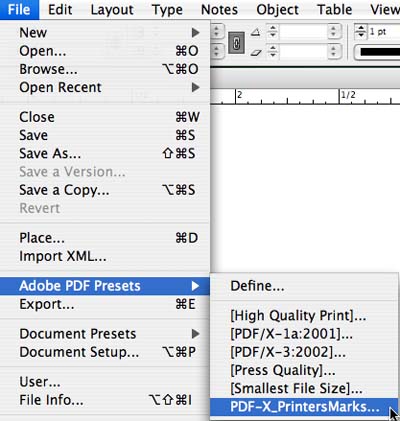
Notice under the Adobe PDF Presets submenu, that you can also choose Define. Selecting this opens the Adobe PDF Presets dialog box. Here you can view a preset’s description, look at a summary of its options, rename and delete presets, and load and save presets.

You might come here, for example, if you wanted to save a PDF preset to use on another computer. Then you’d select the name of the preset in the list and click Save As. You’d name the “.joboptions” file you’re creating “PDF-X_PrintersMarks.joboptions” and save it so it can be imported on another computer using the Load command. Your print service provider might give you one of these files to use when creating PDF files to be sent to them for output. It would already contain the options they wanted you to use in making the file.
PDF Presets and Settings Files in the Creative Suite. One of the great features of PDF presets in InDesign CS2 is that they can also be used with the other Adobe Creative Suite 2 applications. (PDF presets in earlier versions of InDesign only worked in InDesign.) Once you’ve created a customized PDF preset you can use it in Illustrator CS2, Photoshop CS2, or even Distiller 7, which comes with Adobe Acrobat 7 Professional. There is a conflicting terminology issue here. Traditionally, Distiller has referred to PDF presets as “settings files,” and you’ll see this wording in that application but both terms refer to the same file. Here’s the way our PDF-X_PrintersMarks PDF preset appears in the Adobe PDF Settings list in Distiller 7:

Be aware that there are some subtle differences between the way Distiller and the Creative Suite 2 applications handle some options. For example, the way subsetting of fonts is handled is somewhat different. In the example we used, which included printer’s marks, there is no way to add printer’s marks in Distiller so that option is ignored.
Finally, where are PDF preset files saved? I left the technicalities of this until the end because most of you won’t know or care (you don’t need to know this location to use PDF presets in InDesign). However, for the techies among us, here is where PDF presets (both the default and customized settings) reside in Adobe Creative Suite 2 and Distiller 7:
Macintosh: Library > Application Support > Adobe PDF > Settings
Windows: Documents and Settings > All Users > Shared Documents > Adobe PDF > Settings
One other technical note is that this location has changed for Acrobat 8 Professional (and presumably Adobe Creative Suite 3). The file format for the “.joboptions” file hasn’t changed, however. The default settings are stored in these locations:
Macintosh: Library > Application Support > Adobe > Adobe PDF > Settings
Windows: Documents and Settings > All Users > Application Data > Adobe > Adobe PDF > Settings
But, when you save your own customized PDF presets, they are stored in your local user location:
Macintosh: Users > [yourname] > Library > Application Support > Adobe > Adobe PDF > Settings
Window: Documents and Settings > [yourname] > Application Data > Adobe > Adobe PDF > Settings
This article was last modified on December 18, 2021
This article was first published on January 20, 2007
Commenting is easier and faster when you're logged in!

Recommended for you
Secrets of the Control Panel Revealed
The Control panel is teeming with hidden shortcuts to other panels, preferences,...

Fixing Problems With Hyperlink Formatting in TOCs
Ever have mysterious unwanted text formatting in an InDesign TOC? Here's one of...

Customizing a Preflight Profile
The key to making Live Preflight useful for your production workflow is to creat...