




This InDesign tip on customizing the Links panel was sent to Tip of the Week email subscribers on June 28, 2018.

Sign up now and every week you’ll get a new tip, keyboard shortcut, and roundups of new articles, plus exclusive deals sent right to your Inbox!
Just scroll down to the bottom of this page, enter your email address, and click Go! We’ll take care of the rest. Now, on with the tip!
The Links panel can show you an amazing amount of useful information about the placed images in your InDesign documents—if you take the time to customize it.
To do this, choose Panel Options from the panel menu. In the dialog box, you have over 60 items you can show or hide in the top part of the panel (Column) or the bottom part (Link info).

And if you add items to the Column, you can use them to sort placed images in the panel. So, for example, you can sort links according to color space, resolution, modification date, folder location, layer, and so on.
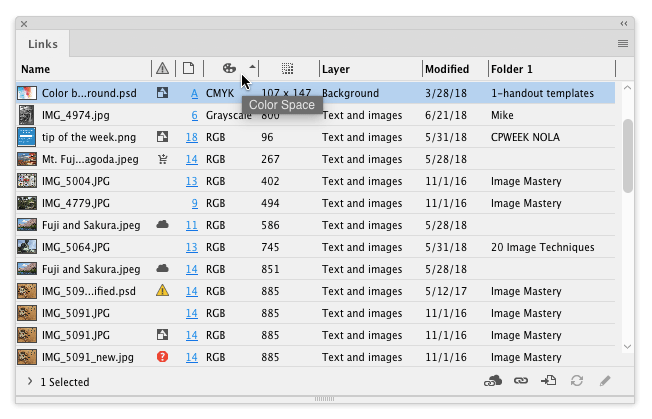
Bonus tip: Links panel customization is included in workspaces, so you can save different versions of the panel in different workspaces and instantly switch between them by choosing a different workspace.
This article was last modified on July 7, 2021
This article was first published on July 3, 2018
Commenting is easier and faster when you're logged in!

Recommended for you

Quick Wins: Handling Images in InDesign
Use these five resources to boost your image-handling skills in InDesign

Dump Pasted or Embedded Images
Pasted images (images without a link in the Links panel) and embedded images mak...
Quick Wins: Adjusting Color in Photoshop
Use these five resources to get better at adjusting color in Photoshop