



Recently, I posted a tip about how InDesign’s Story Editor can help when you’re designing with text.
Seeing the plain, sad, default Story Editor display in my screenshot reminded me of another key tip for getting the most out of the Story Editor: customize it!
In InDesign’s preferences dialog box, about two-thirds of the way down the list of categories you’ll see Story Editor Display.
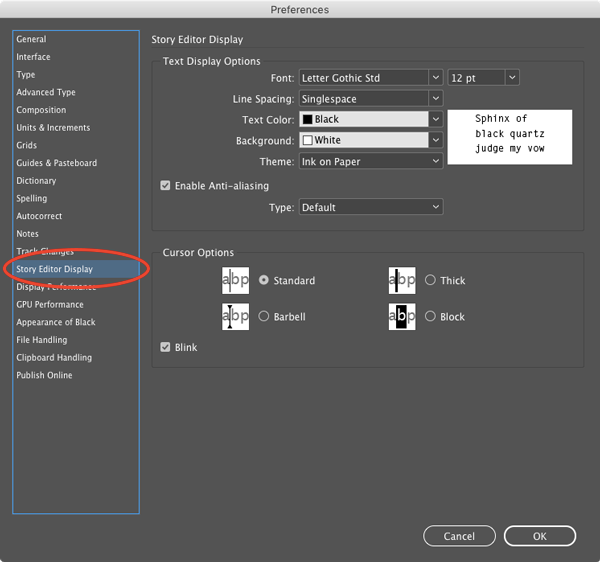
Select it, and you’ll find that you can vastly improve the look of text in the Story Editor. You can choose any of your installed fonts to display text. Just be sure to choose one that has bold and italic styles, or InDesign will warn you that it won’t be able to display basic formatting in the Story Editor.

And perhaps more importantly, you can also increase the size and line spacing to improve the readability of text in the Story Editor.

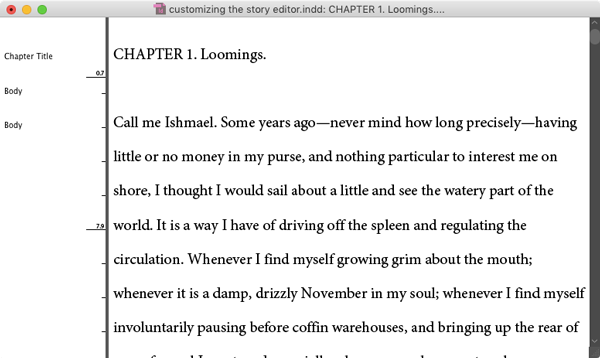
You can also experiment with different colors for the text and the background and different styles of antialiasing.

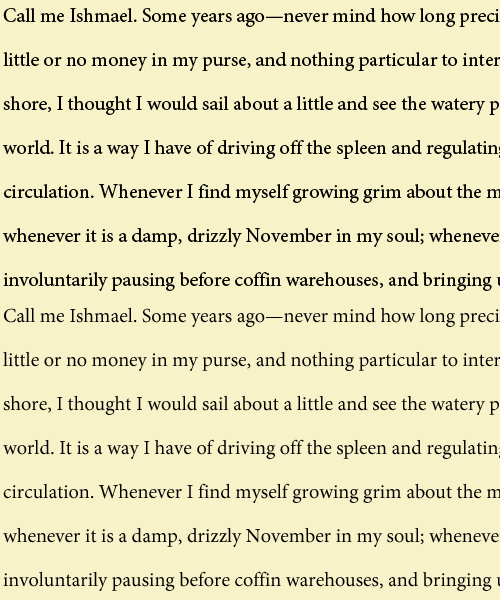
On my display, there is no difference at all between the Default and LCD Optimized antialiasing. But Soft definitely lightens things up.
Here’s an animated GIF comparing Default and Soft antialiasing.
There are also some Themes (combinations of text and background color) you can try out, but I have never met anyone who used any of them, and Adobe probably could quietly retire all of them and not a single InDesign user anywhere on the planet would care (or even notice).
On the other hand, Cursor Options has the potential to be useful. This setting lets you change the shape of the cursor in the Story Editor. Some of the shapes are much easier to see than the thin Standard cursor.


So sometime when you have a free moment, play around with the Story Editor Display preferences. I bet you’ll be surprised how easy it is to make a big improvement in the appearance of text.
This article was last modified on July 25, 2019
This article was first published on May 4, 2017
Commenting is easier and faster when you're logged in!

Recommended for you

Finding the Location of Missing Fonts in Your InDesign Layout
If you search for a missing font in InDesign using the Find Font dialog box and...

Spell check text in Multi-state Objects
Keith shows how to spell check text on all the hidden states of Multi-state obje...

Sleuthing With Snippets
Mike encounters a strange Story Editor symbol from the Far East, uncovers its id...