



This CreativePro Tip of the Week on opening files as layers in a Photoshop document was sent to CreativeProse email subscribers on March 29, 2017.
Sign up now and every week you’ll get a new tip, plus roundups of new articles, and exclusive deals sent right to your Inbox!
Just scroll down to the bottom of this page, enter your email address, and click Submit! We’ll take care of the rest. Now, on with the tip!
Got a bunch of separate image file that you plan to merge into one Photoshop composition? You can have Photoshop open all the images at once and add them as layers in a single document. Here are two ways to accomplish this:
Using Adobe Bridge
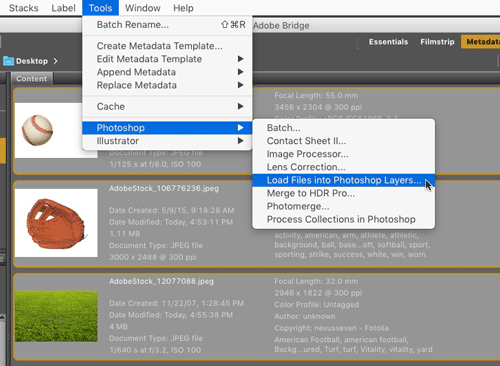
In Adobe Bridge, arrange the images in the order that you want them to be in the layer stack. Then select them all and choose Tools > Photoshop > Load Files as Photoshop Layers
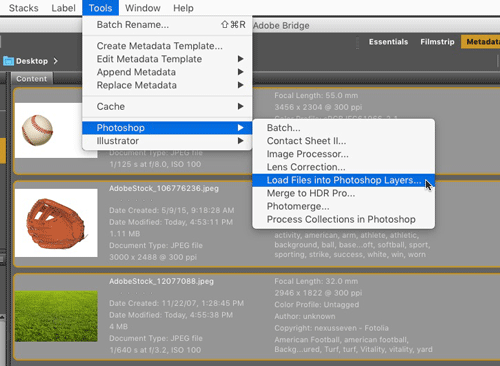
A new document will be created with layers for each of the files, named with the file names.

Using Photoshop
Choose File > Scripts > Load Files into Stack.

Then in the Load Layers dialog box, you can specify either a folder or separate files, and choose them with the Browse button.

The Photoshop dialog box also offers some handy options to add open files, to create a single Smart Object from all the files, and to attempt to automatically align the layers.
This article was last modified on April 3, 2017
This article was first published on April 3, 2017
Commenting is easier and faster when you're logged in!

Recommended for you

Photoshop New Features Guide Updated
Earlier this year, I wrote about a great resource for Photoshop users, the Photo...

Making an Image Out of Words With Photoshop
If you’ve got a message, you could just set it as text. Or you could get c...

Using the Blend Tool in Adobe Illustrator
Illustrator provides many useful methods to create color blends including the Gr...