




This CreativePro Tip of the Week on locking objects in Illustrator was sent to CreativeProse email subscribers on February 15, 2017.
Sign up now and every week you’ll get a new tip, plus roundups of new articles, and exclusive deals sent right to your Inbox!
Just scroll down to the bottom of this page, enter your email address, and click Submit! We’ll take care of the rest. Now, on with the tip!
When you have a complex Illustrator document with lots of overlapping objects, it can be tricky to select the exact subset of objects you want to manipulate (even if you’re diligent about organizing content with layers). Sometimes the fastest solution is to simply lock the objects you don’t want to select. You can lock selected objects by pressing the keyboard shortcut Command+2 on the Mac or Ctrl+2 on Windows.
The Lock Selection command is found in the Object menu, where you can also find commands for locking all artwork above a selection, and all artwork on other layers.
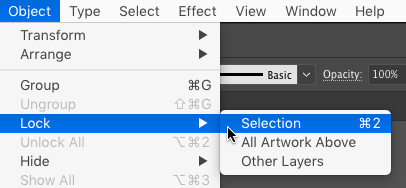
To then unlock all objects in the document, press Command+Option+2 on the Mac or Ctrl+ALT+2 on Windows.
This article was last modified on February 20, 2017
This article was first published on February 20, 2017
Commenting is easier and faster when you're logged in!

Recommended for you
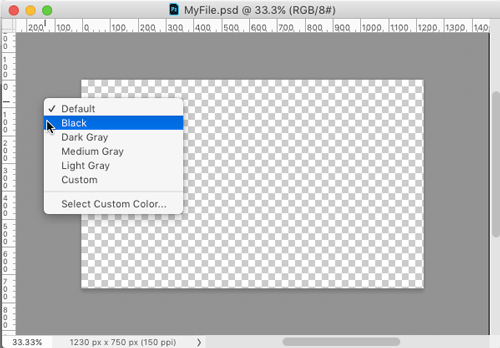
Changing the Apron Color in Photoshop
I know what you’re thinking. What the heck is the “apron” in P...

Quick Solutions to 4 “Impossible” Adobe Problems
In my daily work (and as an Adobe Community Professional), I get asked a lot of...

Mastering Photoshop Smart Objects: Blending Layers Without Masking
When it comes to mastering the art of blending layers (or any of Photoshop...