




Andrew B. wrote (on the InDesign mail list):
I have yet to find out how to set up two flows that actually work, easy in Quark but apparently impossible in ID without accidentally stumbling over the right combination of preferences and settings, if there is one.
This trick, like many others, is actually simple after you see how to do it, but I agree that it’s not immediately intuitive. The first trick is to set up frames on your master pages. (This is one of the few times that I bother with making master page text frames anymore. They’re just not nearly as important in InDesign as they are in XPress.)
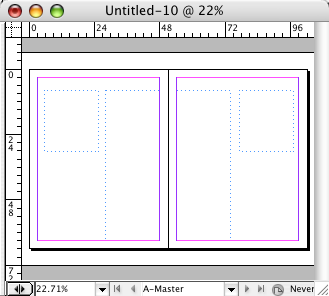
Now, if I just leave it at that, it doesn’t work. Here’s what happens if I try to place a text file into one of the frames on page 1:
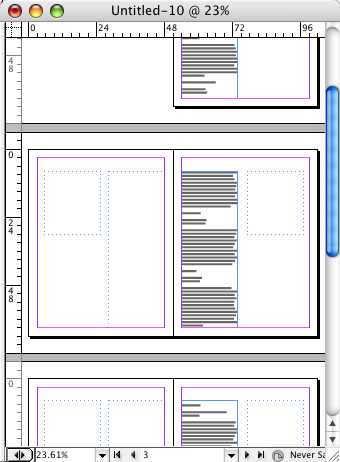
Instead, I’ll undo that and go back to the master page and link the frames from the left page to the right page:
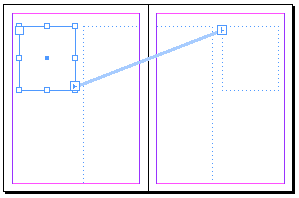
In the image above, the tall frame on the left is also linked to the tall frame on the right. This tells InDesign how you want to text to flow. What’s weird about this (to me, at least) is that this looks like it’s saying, “Just link from the left page objects to the right page objects,” but it doesn’t say anything about linking from right-to-left. It’s okay; it works anyway.
Now when I place the text into the first frame (and hold down Shift when clicking the Place cursor, so that it places the whole text file, adding pages as necessary), I get this:

Great! Now I place the second text story (again, by Shift-clicking):

Of course, this works with more than two frames, too. As long as you tell InDesign which frames should connect to which across a spread, it works beautifully.
This article was last modified on December 18, 2021
This article was first published on May 31, 2007
Commenting is easier and faster when you're logged in!

Recommended for you

Sort Cross References
Cross-references are printed in the order in which they were added to the docume...
Create Flawless Fractions with OpenType
Choose your font carefully if you need flawless fractions!
Index Fixes: No Styling in Topic Names
Topic names cannot natively be styled in the Index panel. However, a simple solu...