Ebooks are hot. They’re just about the only part of the book industry that’s growing. When “The Lost Symbol,” Dan Brown’s followup to “The Da Vinci Code” was published this week, aside from preorders, the Kindle edition of the book outsold the hardcover edition at Amazon.com,one report said, .
Great news for InDesign users is that Adobe InDesign provides one of the best ways to create e-Books (you need InDesign CS3 or InDesign CS4). However, the methodology for doing this isn’t necessarily easy or obvious. But a new Adobe white paper published this week, along with a couple of helpful blog posts from Adobe, will help you get started exploring this new technology. Below, I’ll point out an alternative method of reading your InDesign-created eBook.
The first step is to create an ePub file. As Mike Rankin wrote on InDesignSecrets.com in February, ePub is “an open standard XML-based file format that allows text to reflow and adjust to the size of various screens. epub is generally thought of as an intermediary format between the authoring/composition tool and the eBook itself. Think of epub as the eBook version of a press-ready PDF. Not the final product, but a necessary step.”
Exporting ePub Files
You can create an ePub file by choosing File > Export for Digital Editions (CS4) or File > Cross-media Export > XHTML / Digital Editions (CS3). There are three panels of choices.
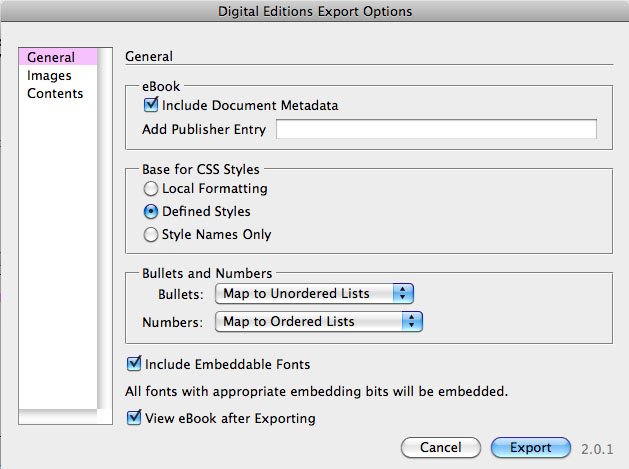
Basically, the InDesign file is being converted to XHTML and CSS (Cascading Style Sheets). However, not every InDesign file will work equally well. Long InDesign documents need to be broken into separate files, and text frames need to be threaded together into one flow. A highly useful blog post from Adobe called “Producing ePub documents from InDesign” provides some guidelines for preparing files correctly.
InDesign CS4 will work much better than InDesign CS3. Quite a few bugs are fixed, and you have new capabilities like being able to include images as anchored objects. Local formatting like bold will really come through as bold. Another posting details some of the improvements in CS4.
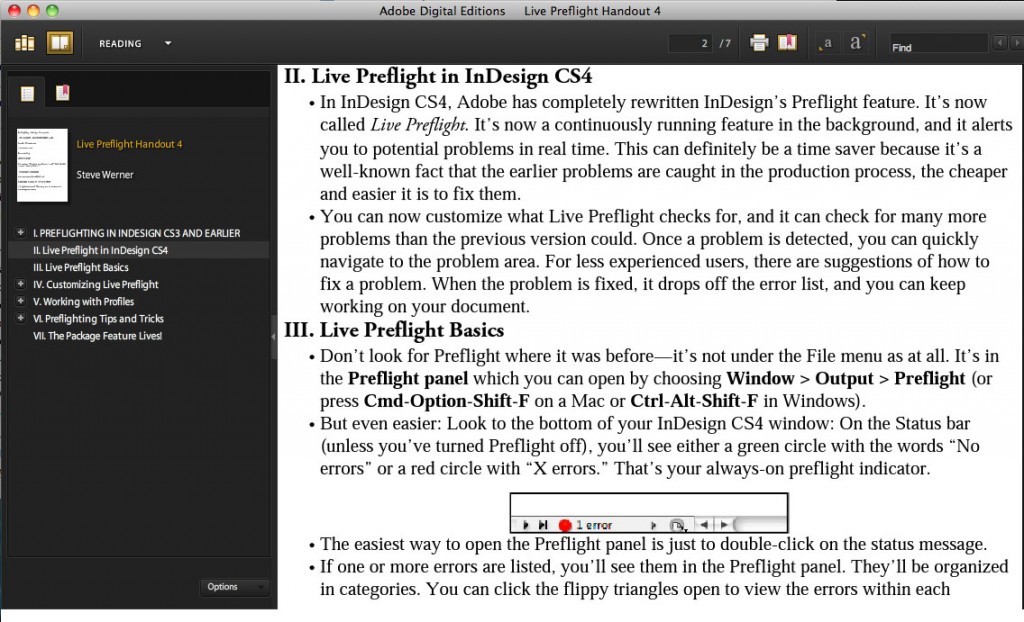
You can preview the ePub you create in Adobe Digital Editions. a free, lightweight eBook reading application for PC and Mac. You can use it to read and organize your eBook collection, as well as preview the ePub files you export from InDesign.
New White Paper Covers Conversion to Kindle
The eBook reader you’ve probably heard the most about is the Amazon Kindle. However, it doesn’t read the ePub format. You need to convert your ePub file into the MOBI format, which the Amazon Kindle can read. This process, and how you can preview your eBook and upload it to the Amazon store are covered in a new white paper from Adobe just published this week. To do the conversion, you need to use Calibre, which is a free, open source eBook conversion tool. Calibre is available for Windows, Mac, and Linux platforms. The steps for the conversion are detailed in the white paper.
This document also has helpful tips for formatting the InDesign file like this one:
If your InDesign document contains local formatting (a manually bolded word without a Character Style applied to it, for example), make sure you select the Local Formatting option under Base for CSS Styles in the Digital Editions Export Options dialog. Local formatting export is supported in the latest version of InDesign CS4 (v. 6.0.3). If you’re using InDesign CS3, only Character Styles, Paragraph Styles, and Object Styles are preserved during the export.
Another Approach: Creating ePubs for the iPhone
But the Kindle is not the only way of viewing eBooks. A competitor is Apple’s iPhone and iPod Touch. There are several free eBook readers available from Apple’s App Store (Stanza, Kindle for the iPhone, B&N eReader, and others). This is potentially a huge market because Apple recently announced that there are now 30 million iPhones and 20 million iPod Touches. Most of these readers can read ePub files directly.
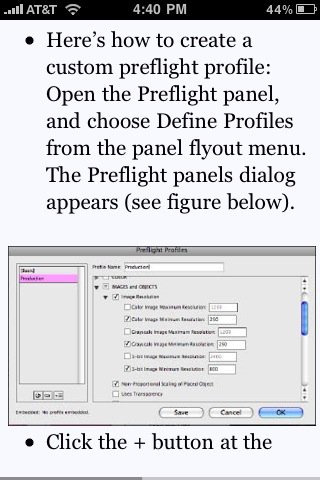
My favorite way of reading ePubs on my iPhone is to use the free Stanza application. In Stanza for the iPhone/iPod Touch, you can use the Online Catalog feature to download free and paid eBooks from a variety of sources. But how do you get your own InDesign-created ePub into an iPhone? You use the free Stanza Desktop application for the Mac or PC, available from Stanza’s creator, Lexcycle.
Once you’ve downloaded Stanza Desktop, launch it. Choose File > Open, and open the ePub file you created in InDesign. Unlike Adobe Digital Editions, the file will appear to lose its formatting because this application isn’t intended as an ePub reader for the desktop. Your computer needs to be on the same local network as your iPhone or iPod Touch. If it is, open the Stanza on the iPhone/iPod Touch, and choose Shared Books. Click on “Books on [name of your computer]”. You’ll see the name of the ePub file you’re viewing in Stanza Desktop. Click on the file’s name. If the book has a cover image, you can view it. Then click Download. Stanza Desktop will let you know that your iPhone/iPod Touch wants to download that file. When you confirm this, the file is transferred to the mobile device and added to the Stanza for the iPhone/iPod Touch’s library.
Now you can view the Table of Contents.

You can page through your pages. Stanza has a variety of reading controls. Click on the bottom part of the screen to view them. You can change text size and color, background color, and so on. Enjoy!
This article was last modified on December 20, 2021
This article was first published on September 18, 2009
Commenting is easier and faster when you're logged in!