



Creating a print PDF from InDesign is easy: You just choose File > Export > Adobe PDF (Print) and pick a PDF preset. That will create a PDF file which you can view at 100% size in a PDF reader like Adobe Acrobat or Adobe Reader.
But what if you want a copy of that PDF at a different size? That’s not so easy. There is no setting for exporting a PDF at a different scaling value.
In the Adobe forum, a poster asked:
I have an A4 document and my client wants both A4 and A5 high res PDF. Is there a way to simply create a smaller PDF rather than recreate the artwork? i.e. send to PDF at 70%?
You could make a copy of the artwork in InDesign and scale it smaller. Or you could place the first PDF into InDesign and scale it smaller. But neither of these methods are much fun if you have a multi-page document.
Dov Isaacs, Adobe Principal Scientist, pointed to an answer that I didn’t know existed—using InDesign’s plug-in, Acrobat Pro DC. Acrobat DC included some new Preflight profiles which weren’t in previous versions of Acrobat. I mentioned one of them in my posting on a better way to outline fonts.
Dov pointed out:
Acrobat Pro DC provides a Preflight fixup that allows you to scale PDF (page size and content) without disturbing any other aspect of the PDF file. Operation is for all pages of a single PDF file.
Since a lot of people don’t know about how to use Preflight in Acrobat Pro DC, here are the steps to use this feature. I used this fix up to take a PDF for some 8-1/2 x 11 slides for a class I’m teaching to a smaller size—6.953 x 9 inches.
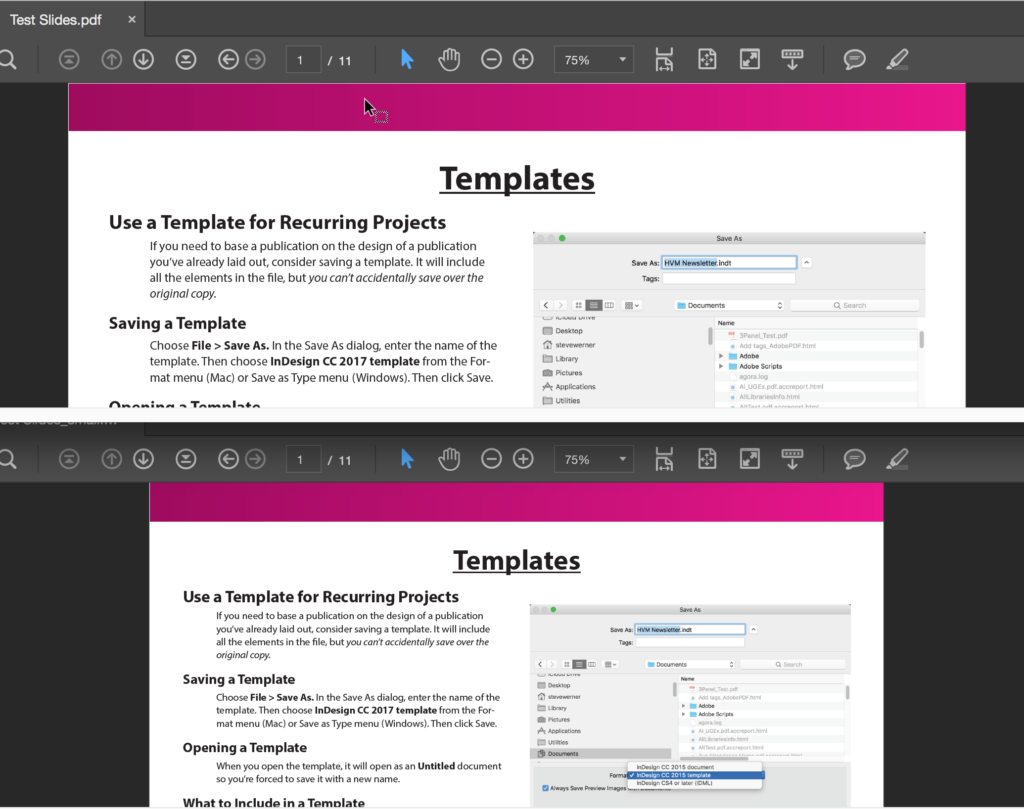
1. In Acrobat Pro DC, open the Print Production tool. Then click on Preflight in the options on the right.
2. In the Preflight panel, in the list at the top, where it by default shows Essentials, select Acrobat Pro DC 2015 Profiles.

3. Click the wrench icon which indicates “Fixups.” In the Search field to the right, enter “scale” and press Return. That will show you fixups which match. I used Scale Pages to Specific Size.

4. Edit the fix up to enter the sizes (and units) you need. I edited a multi-page PDF that was 8-1/2 in by 11 in to 6.953 x 9 inches (I had to change millimeters to inches for units).
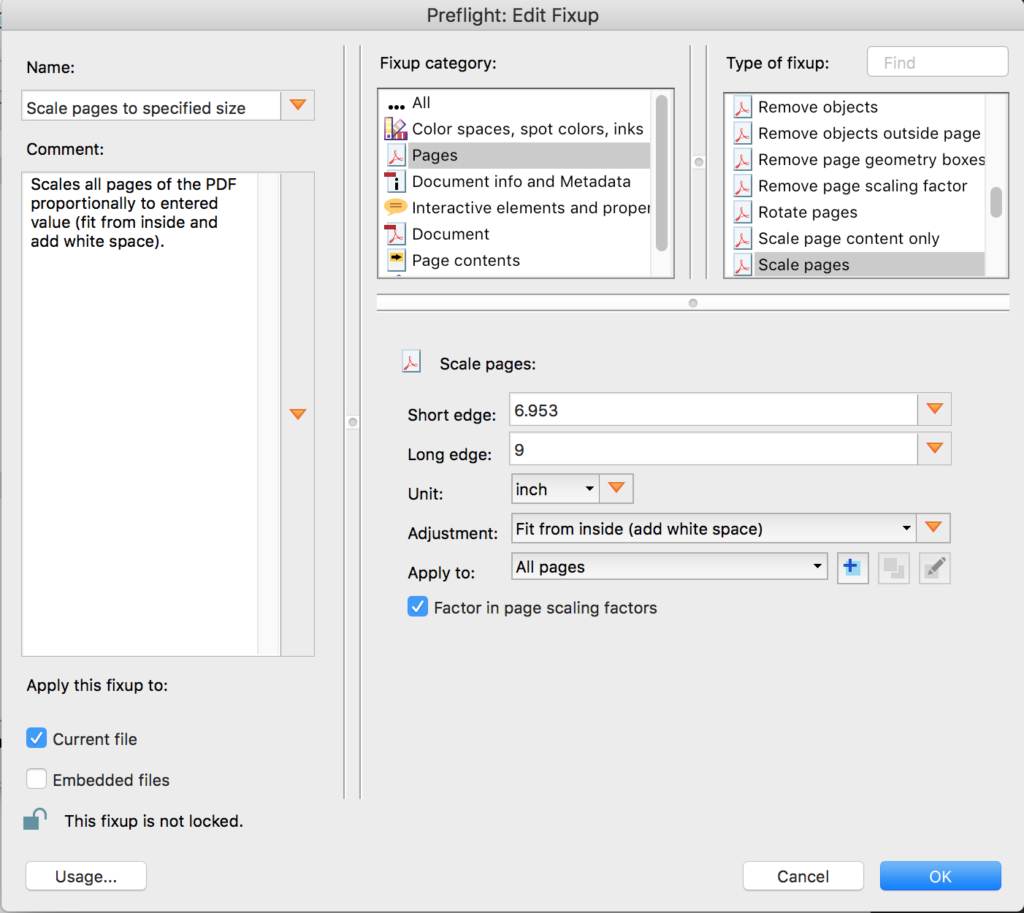
5. When you click OK, you’ll save your new scaled file with a new name.
This article was last modified on October 23, 2020
This article was first published on July 17, 2017
Commenting is easier and faster when you're logged in!

Recommended for you
Why You Should Import RGB Images Into InDesign and Convert to CMYK On Export
Yes, we know you probably learned to convert images to CMYK in Photoshop before...

Getting the Right Bleed in Print PDFs
As a prepress operator, one of my responsibilities is to check artwork supplied...

InDesign and Acrobat: PDF Partners
This article appeared in Issue 134 of InDesign Magazine. While the app...