



Everyone knows you can copy and paste text from one InDesign document to another, or from another application into your InDesign document. You can even control whether the text formatting is saved or discarded:
- If the text comes from outside InDesign, you can choose to keep or discard the formatting in the Clipboard Handling pane of the Preferences dialog box.
- If the text comes from the same or another InDesign document, you can strip out the formatting by choosing Edit > Paste without Formatting.
Unfortunately, these rules don’t fully apply to tabular text (text from one or more table cells). In particular, there is no way to strip out the formatting when you paste tabular data from one InDesign document to another (or one table in your document to another, or even from one part of an InDesign table to another part). That’s a problem, but there’s an easy solution, which I’ll show you in a minute.
First I need to explain one thing quickly: To copy and paste more than one cell of tabular data, you need to:
- Select all the cells you want to copy (you can probably just drag over them with the Type tool);
- Select one or more cells in the table you want to paste the data into. To make it easy, click inside the upper-left cell in the range with the Type tool (so that the cursor is flashing in that cell) and then press Esc (escape). That’s a shortcut for selecting the cell itself (rather than the text inside the cell).
- Paste.
If you copied cells from another program (such as Excel or Word), the formatting is automatically stripped out when you paste into InDesign. That is, the numbers or text from the cell are formatting based on whatever cell formatting already existed in InDesign. (Well, actually, if you have your Clipboard Handling preference set to retain all style formatting, then it really messes up the paste, placing a new table inside the first cell of the table. It’s ugly! Don’t do that.)
However, if you copied the cells from another InDesign table, then when you paste, it takes the formatting along for the ride. You might try to choose Paste Without Formatting, but — oddly — that feature is disabled for tabular data. Oops.
Okay, so here’s the trick: Use the free PopTabUnleashed script, written by Dave Saunders. Dave originally wrote this many years ago, but it still works.
(Remember, to install scripts: Open the Scripts panel from the Window menu; right-click on the User folder inside the panel; select Reveal in Finder/Explorer; place the .jsx script (not a zip file) inside the Scripts Panel folder; return to InDesign and look inside the User folder in the Scripts panel; double-click the script to run it.)
If none of that explanation made sense, here it is in visual form:
Here are two InDesign tables (granted these are really ugly, but I’m just trying to explain something here):

After I select the first two rows in the top table and paste them into the first two rows of the second table, you can see that the second table’s formatting is wiped out:
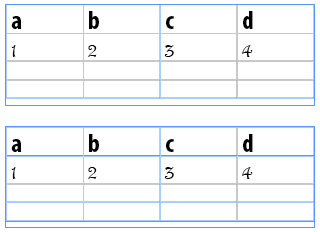
Now, let’s undo, then try it again, this time using the PopTabUnleashed script to do the “pasting”:

Now just the data shows up, formatting the way it should in the second table. Bravo!
This article was last modified on June 8, 2022
This article was first published on January 8, 2012
Commenting is easier and faster when you're logged in!

Recommended for you

New Contest! The Puzzling Pasted Text
Solve this InDesign mystery for a chance at winning a great prize.

Catalog Creation With Pagination Software
I’m Kristina Ormaza, graphic designer and marketing specialist for Crown Supply...

Paste Image Into New Frame with Same Cropping Offsets
Shawn wrote: Is there a way to get paste into to place an image in exactly the s...