



As I mentioned back in this earlier post, InDesign’s GREP feature lacks the ability to convert found text from upper to lower case (or vice versa). In the comments to that post,
I have 300 pages that I want to change the first character of a bullet point to lowercase. It would also be nice to remove the full stop at the end of the bullet point. As some bullet points contain several sentences, it would need to omit the full stops and capitalised sentences within the paragraphs.
So today the answer remains: No, you can’t do this in InDesign. But InDesign just uses one flavor of GREP. There are others, including some that can convert case. So think outside the box!
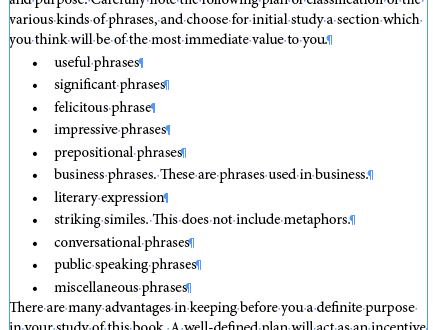
Here’s my original text, formatted with automatic bullets (using a paragraph style called List):

Note that some paragraphs end with a period and others don’t. We want to make all the characters at the beginning of the list items lower case and remove the period when present.
The trick is to export your text in a file format that can be manipulated by GREP (text only) while also being able to re-import it without losing all your formatting. The answer, of course, is InDesign Tagged Text. So choose File > Export, then choose InDesign Tagged Text from the Format pop-up menu. Now open that text file in a text editor that has a GREP feature. On the Mac that should probably be BBEdit or its free (but very powerful little sister) TextWrangler:

All the paragraphs are tagged with the paragraph styles, so it’s easy to search for paragraphs that start with our “list” style. Now we open the Find/Change dialog box, turn on the GREP checkbox, and type in some code. Warning: There are likely more elegant and optimized ways to write the GREP codes; feel free to note your favorite ways of doing this in the comments below.

In this case, I’ve written GREP code
(<ParaStyle:list>)([A-Z])(.+)([a-z])\.?$
which searches for any string of text that starts with the “list” paragraph style tag, followed by a single uppercase character, followed by any string of text, ending with any lowercase character that may or may not be followed by a period at the end of the paragraph.
I replace it with the original paragraph style codes (\1), then use the code that converts the following character to lowercase, then insert the rest of the line of text (\2\3\4), leaving out the period at the end if one had been there. (Note that TextWrangler is using backslash-number instead of the dollarsign-number code that InDesign uses. This is another example of how different flavors of GREP work slightly differently. Be sure to read the Help files for whatever program you’re using!)
When I click Change All, it does it’s magic. The only problem is that I’ve removed the periods at the end of the bullet items that needed them (the ones that contain a second sentence in the line. So I’ll run a second GREP query to add those periods back in:

Seems like there must be a way to do both these steps with one GREP query (basically, make the first one leave in the punctuation for those paragraphs that need it), but my Monday-morning brain isn’t finding one.
Anyway, the important thing is that after I’m done, I just need to save the text file, go back to InDesign, delete the text that was there, and use File > Place to import the modified tagged text back in. The result looks exactly the same as the original, except for the changes we made:
This article was last modified on December 19, 2021
This article was first published on March 16, 2009
Commenting is easier and faster when you're logged in!

Recommended for you

Tip of the Week: Toggling Find/Change Direction
This tip was sent to Tip of the Week email subscribers on February 19, 2015. Sig...

Search for Foreign Language Characters in Text
InDesign offers very fine grained control over find/change, including which sort...
Tip of the Week: Changing Case
This tip was sent to Tip of the Week email subscribers on April 9, 2015. Sign up...