



Tom e-mailed this question:
In Quark one had access to the control bar with a keyboard shortcut (command-option-M). Is there a shortcut in InDesign to get into the first field of the control palette?
Yes, the one you’re looking for is Command-6 (Control-6 on Windows). That highlights the first field in the Control panel regardless of which mode it’s in. Use the Tab key to move the focus to the next field(s), Shift-Tab to move back.
Other ones I find useful for the Control panel:
- Return focus to the document page by pressing either Return/Enter or the Esc key.
- Command-Option-7 (Control-Alt-7) toggles the panel between Character and Paragraph formatting modes when you’re editing text.
- When a field is highlighted (or your cursor is blinking in it), use the arrow keys to increment its settings up and down. Add the Shift key to increase the increment it uses. A lot faster and easier than entering settings into those tiny fields manually.
- Another benefit of using the arrow key is that the focus remains in the Control panel field as you tap the arrow. So if you had something selected, it’s like a constantly-updating Preview. Press Return/Enter or Esc to apply the current setting and return focus to the document.
- In the Typeface and Type Styles fields, the arrow key cycles through all the choices. Or you can just type the first few letters of the one you want.
- When you press Tab to move out of a field and the next control is a group of icons (such as the group including All Caps, Superscript, Underline, etc.; or the Rotate/Reflect ones), the Tab key subtly highlights the first icon, but doesn’t apply it. You need to press Return/Enter to apply (turn on) the highlighted icon.
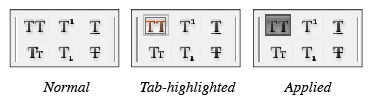
- If you don’t press Return/Enter and just press Tab again, the entire icon group is “skipped” and the highlighted one is not applied. If you want to apply one of the other icons, get the first one highlighted again (pressing Shift-Tab will work, if you’ve skipped the group), then use the arrow keys to highlight each of the icons in turn.
- To apply or enable a setting in the Control panel to the document but keep the focus in that field or on that icon, press Shift-Return/Enter instead of just Return/Enter.
Oh yeah, baby, a few more keyboard shortcut tricks than QuarkXPress!
This article was last modified on December 18, 2021
This article was first published on April 18, 2008
Commenting is easier and faster when you're logged in!

Recommended for you

Use Eyedropper Tool to Copy Formatting
Peter wrote: Thank you for hosting the best resource around for any software pro...
The InDesignSecrets Chutzpah Award for Creative Uses of InDesign
Daniel T. wrote us to report a creative use for InDesign: My current contract ha...
Split Text Color from Black to White in the Middle of a Frame
Need some text to suddenly change color when its over a dark background? This te...