



Whilst I’m on a roll and writing a series of blog-posts, I might as well take a few minutes to answer a question posted by Jackie in one of my previously written blog-posts:
Hi, I make books for kids and have to make/draw a clock. How do I get the minutes dotted around the circle?
There are definitely different ways of tackling this, but as I’m also a long-time Adobe Illustrator user, I’m using a simple method that rotates and copies the minute dashes (or dots) around the clock’s center-point. In fact, I would prefer to draw an illustration such as a clock in Adobe Illustrator normally, as this application contains many more drawing features.
The technique shown below is a simple transformation that defines a reference point around which the actual transformation occurs, then repeats the transformation action.
Start by dragging a horizontal and vertical ruler guide onto the page. The intersection of the two rules would be the center point of the clock. Ensure that the guides are locked once you’ve added them to the page (View > Guides & Grids), this is to prevent you from selecting them by mistake later on…

Next draw a tiny circle (the size you want them to be for your minutes) at the 12-o’clock mark, that is centered on the vertical guide and select it.
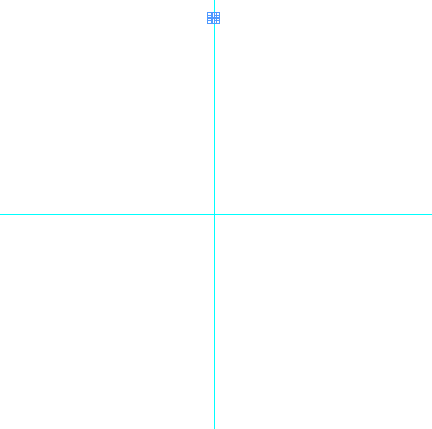
Now, select your Rotate Tool (R) and Alt/Option click in the center point of the clock. The Rotate dialog appears.

In here enter an Angle of 6-degrees (360/60 = for one dot per minute) and click Copy.

A second dot now appears. It is still selected. Next choose Object > Transform Again > Transform Again (you can also choose Transform Sequence Again, which has a default shortcut in CS5 that is Ctrl(Cmd)+Alt(Option)+4. Each time you press that shortcut another dot is added. Continue until you’ve got all your minute dots set.
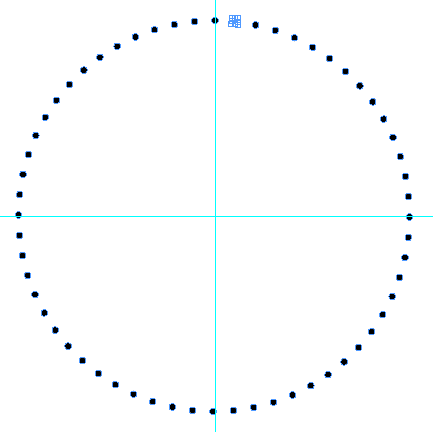
You can now remove any dots you don’t want, for example for the whole, half, quarter hours, and group the remainder of the minute dots together (Object > Group after first selecting the dots) so that you can – if required – increase or decrease the size of the entire group.
This article was last modified on December 20, 2021
This article was first published on August 12, 2010
Commenting is easier and faster when you're logged in!

Recommended for you

Finding and Changing Glyphs
Have you ever tried to switch to a different font in a document which uses speci...
Gravity is Finally Fixed!
The Gravity feature fundamentally broke in CS3. Fortunately, it's finally fixed...
Two Tips in One: Vertical Spreads and Shared Layouts
Robbi wrote, I was wondering if there is a way to have a group of objects in one...