




A.C. wrote:
I have never been able to figure out how I can change the color of all of the text in a table in one fell swoop. If you select all the cells, using the Swatches palette changes the fill of the cells, not the text.
The good news is that there is a simple solution—one which seems obvious in retrospect, once you know where to look. It all comes down to two buttons at the top of the Swatches panel, next to the Fill and Stroke icons. The first button is called “Formatting affects container.” This is the button that is usually selected by default, and it means color swatches will be applied to the stroke or fill of the frame… or table cell!
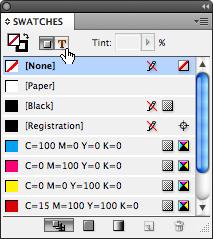
The second button is called “Formatting affects text.” I bet you can guess what that one will do! When you choose this before clicking a swatch, the color is applied to the fill or stroke of the text inside the container (the frame or the cell).
Even better, there’s a keyboard shortcut: Press the J key to toggle between the two buttons.
This article was last modified on January 27, 2022
This article was first published on July 22, 2009
Commenting is easier and faster when you're logged in!

Recommended for you

InQuestion: List Lines, Running Headers, and Table Cells
Erica Gamet highlights the best Q&A from the incredible InDesignSecrets Facebook...
Tip of the Week: Decimal Align Numbers in Table Cells
This tip was sent to Tip of the Week email subscribers on October 9, 2014. Sign...
The Mystery of the Text That Wouldn’t Align Right Contest Answer and Winner
Solve this InDesign mystery for a chance at winning a great prize.