



I’ve posted a few times about creating interactive PDF files?particularly how to use InDesign’s powerful button feature for creating interactivity. First, I posted about how creating buttons got easier in InDesign CS4 (and CS5). Then, I posted about showing and hiding objects in interactive PDF. Finally, I added some other PDF button tips.
But today in the Adobe InDesign Forum, I came upon this question:
I have a series of buttons that reveal hidden graphics. One of those hidden graphics is a background layer, in a separate layer, that should appear when a button is clicked. It is showing up, but in front of all other content, even though the layer is in the background. I have nothing else on the background layer. Also, the preview in InDesign shows this working properly, it’s the exported Interactive PDF that is having problems. Any suggestions?
Show/hide buttons can let you show and hide objects which have themselves been turned into buttons. But, in InDesign, show/hide buttons cannot control the visibility of layers. I think it’s because of the way buttons are handled in a PDF file. They are treated as a separate “layer” above the “content” of the PDF file. (The Preview panel in InDesign CS5 is mostly accurate in previewing SWF output, not PDF, because it uses InDesign’s new Flash capabilities.)
However, you can change the layer visibility of a PDF file, you just can’t do it in InDesign alone. You also have to make use of the layer controls in Acrobat. So here’s a simple example which has three layers?a yellow background, text, and a graphic. We’d like to turn the background on and off with a button.
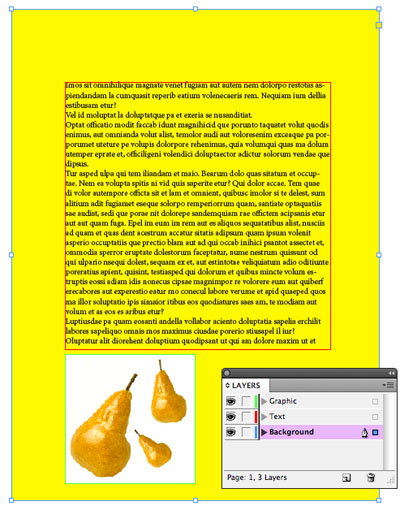
Three layers
We’ll create the buttons in InDesign because it lets you turn virtually any artwork into a button. For my simple example, I’ll include a descriptive label “Background On” or “Background Off.” While it’s not required, we’ll put the objects which will become buttons on an Interactivity layer.

Interactivity Layer
To turn each of them into a button, open the Buttons panel. Just select the object, and click Normal in the State Appearance section of the panel. (You could add a Rollover appearance, but we’ll keep this simple.) We won’t set an Action.

Create Button - No Action
Since layer visibility isn’t a button Action we can set in InDesign, we’ll next export our document to create an interactive PDF file. How we do this depends on which version of InDesign you’re using. In InDesign CS4 and earlier, choose File > Export, select Adobe PDF in the Format menu, and click Save. In the Export Adobe PDF dialog box, there are three things required:
- You must set Compatibility to Acrobat 6 or later (because PDF layers only became available in that version 6).
- You must check Create Acrobat Layers.
- You must check Interactive Elements (so the buttons will become part of the PDF file).
InDesign CS5 how has two different paths for creating PDF files?Print and Interactive. To include buttons in a file, we must choose File > Export, select Adobe PDF (Interactive) in the Format menu, and click Save. Then you’ll see the new dialog box below. All you have to select is Create Acrobat Layers, and accept the other defaults.

CS5 Interactivity Export
In Acrobat (you must have Acrobat 6 or later), open the Layers panel to view your layers. In Acrobat 9, choose View > Navigation Panes > Layers. In Acrobat X, choose View > Show/Hide > Navigation Panes > Layers. You’ll also need to make available the Select Object tool. In Acrobat 9, choose Tools > Advanced Editing > Select Object Tool. In Acrobat X, open up the Content section under Tools at the upper right. When you choose this tool, you’ll be able to work with the buttons you created in InDesign. In the illustration below from Acrobat 9, I’ve circled the Layers panel and the Select Object tool. Notice the buttons are highlighted below.

Layers in Acrobat
The Layers panel works the same in Acrobat as it does in InDesign. You can click the eyes on and off to make layers visible. We want to use each button to control the visibility of the layers to make it easier for a viewer.
First turn all the layers on (the default) so the background is showing. Then select the Background On button with the Select Object tool. Double-click on the button to open the Button Properties dialog. Click on the Actions tab. In the Select Action menu, choose Set layer visibility. When you click Add, the Layer Visibility action will be defined, showing exactly the layers which are currently visible.

Set Layer Visibility
Now, turn off the Background Layer on the Layers panel, so the background is not visible. Select the Background Off button, and double-click. Repeat the same choices as before.

Background Off
It would be a great addition to the next version of InDesign, to add layer visibility to InDesign’s button actions so you don’t have to do these extra steps in Acrobat!
This article was last modified on December 20, 2021
This article was first published on February 10, 2011
Commenting is easier and faster when you're logged in!

Recommended for you

6 ways to type the Pi symbol in InDesign
My youngest son informed me today that we are 10 days from Pi day (in the US). 3...

Fixing Problems With Hyperlink Formatting in TOCs
Ever have mysterious unwanted text formatting in an InDesign TOC? Here's one of...
Eliminating the White Box Effect
One of the most common complaints of designers or print service providers when p...