




When you assign a Start or End style for a path in the Strokes palette (for example, putting an arrowhead on the end), you sometimes get the arrow on the wrong side of the line. You can fix this in the Strokes palette, of course (by changing the popup menus), but you can also change it by reversing the direction of the path. That’s right, paths have “direction” — from start to end — and InDesign lets you reverse it by choosing Object > Path > Reverse Path. There is also a Reverse Path button in the Pathfinder palette.
If you all go try that right now, I bet 95% of you will find that feature grayed out (unaccessible). Why? Because for some unfortunate reason, both the palette button and the menu item are grayed out if you have the Selection tool chosen in the Tools palette. Instead, you must use the Direct Selection tool.
This article was last modified on December 18, 2021
This article was first published on July 10, 2006
Commenting is easier and faster when you're logged in!

Recommended for you
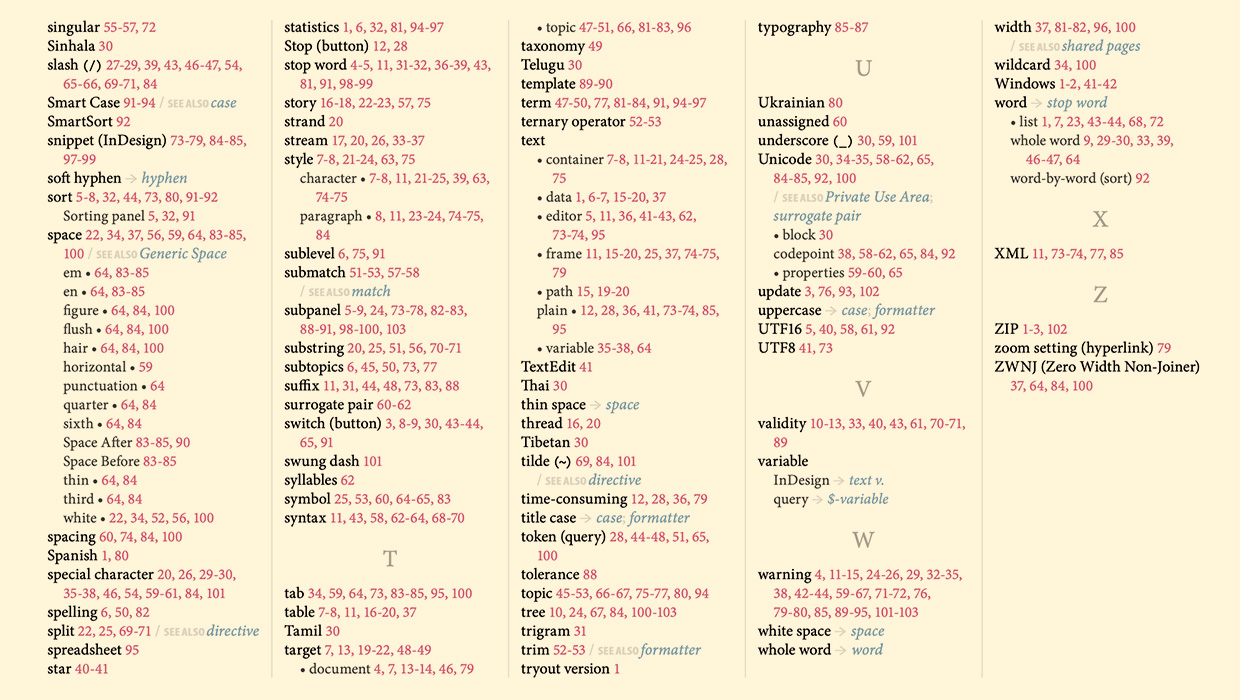
IndexMatic<sup>3</sup> Review
The most powerful indexing solution for InDesign just got even better.

Working with Handwriting Fonts
Handwriting fonts can help you connect with your audience—just be sure to avoid...

Editor’s Picks for The Design + AI Summit 2026, Part 1
Our Editor in Chief lists his must-see sessions for The Design + AI Summit 2026,...