



A few weeks ago I wrote a post about how to create and add a custom InDesign dictionary (containing all of your company’s jargon and product names, for example) and share it with your co-workers. Work is sped up because InDesign (or InCopy) doesn’t keep flagging your company’s words as being misspelled, and increases accuracy because everyone’s copy of InDesign is pulling the from the same custom dictionary with the same correct spellings.
I was showing this technique to a client, a publisher, and they asked me, “Can it check capitalization, too?” And the answer is, “YES IT CAN.” (heh …my little tribute to today being the 1-year anniversary of Pres. Obama’s inauguration.) I’ll show you how this works via a small example.
I’ve already created a custom dictionary and added it to my InDesign > Preferences > Dictionary list, as explained in the previous post. I’ve not yet taken the step of adding any words to my custom dictionary, though.
Okay … below, I’ve entered some text where everything is actually spelled correctly, but InDesign isn’t recognizing some of the words and so applies the red zigzag underline to them:
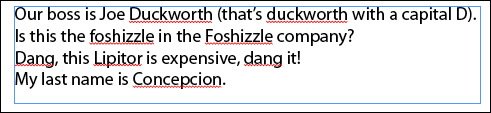
I export the contents of that text frame to a TXT file (File > Export > Format: Text Only), clean up the text file a bit in a text edior (get rid of punctuation, mostly), and then I import the text file into my custom dictionary in InDesign. It’s easy: choose Edit > Spelling > Dictionary, choose the name of the custom dictionary from the Target menu at the top of the dialog box, click the Import button, and select the text file I just cleaned up. Here are the results:
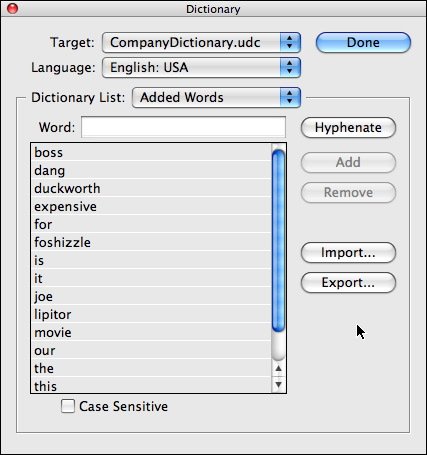
Notice that the Case Sensitive is “off” (the checkbox is empty) at the bottom of the dialog box, which is the default setting. It would do no good to turn it on now, because all the words have been converted to lowercase during the import (since I didn’t turn on the checkbox first)! That’s a feature-not-a-bug.
Anyway, let’s see what our text frame looks like now:
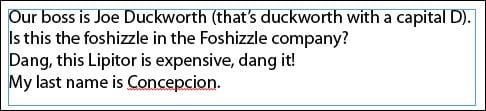
Apparently, every word is spelled correctly (except for Concepcion, which I removed from the text file as a control) because InDesign is ignoring the case. If it’s listed in the dictionary, and spelling in the layout matches, then it’s correct.
What my client wanted was for InDesign to flag the lowercase “foshizzle” and “duckworth” (no, not those actual words, silly!) during a spellcheck because they should always be capitalized in their publications.
Easy enough to fix in InDesign, especially since I still had the text file around and it contained the proper capitalization. (It’s possible to fix these manually, one by one, but I’m lazy.)
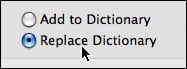
I opened the Dictionary dialog box again (Edit > Spelling > Dictionary), chose the custom dictionary in the Target menu at the top, turned on the Case Sensitive checkbox, and clicked Import. When I selected the text file, I made sure to choose Replace Dictionary so I wouldn’t end up with both upper and lowercase versions of the words (which to InDesign means “ignore case for this word”). I wasn’t worried about duplicate words, since InDesign strips those out automatically.
Now my custom dictionary looked like this:
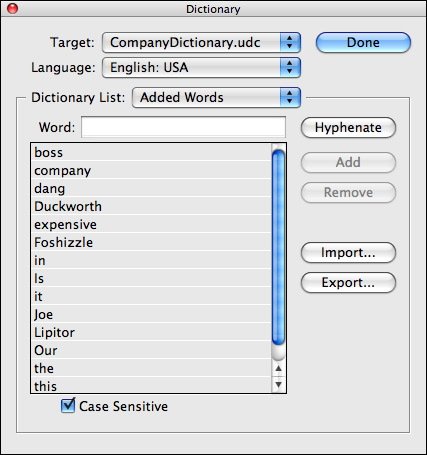
In order to see the effects in my document – which while I was getting a cup of coffee, had sucked in the previous set of custom dictionary words into its internal document dictionary – I had to copy/paste the text frame to a new file. The new document had no memory of the old, case insensitive dictionary, just the current one.
Here’s the spellcheck markup InDesign then applied:
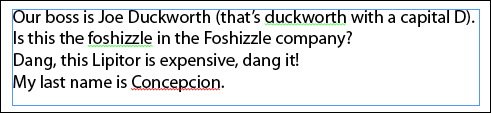
Concepcion is still misspelled, since I never added it to the dictionary. But if you look closely (I’m making the screen shot larger here), you can see a green squiggle under the lowercase “duckworth” and “foshizzle” indicating a capitalization error. If I right-click on these, InDesign suggests the capital version of it as a correction.Woo-hoo!
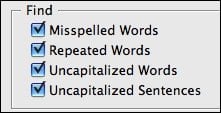
One last thing … if this isn’t working for you, be sure that you haven’t turned off “Find Uncapitalized Words” in your spelling preferences.
This article was last modified on December 20, 2021
This article was first published on January 20, 2010
Commenting is easier and faster when you're logged in!

Recommended for you

InDesign How-To: Lay Out a Book Cover in Three Minutes
How to quickly lay out a book cover design using gradients, blend modes, images,...
Do You Have a Color Vision Deficiency?
Want to find out if you have any deficiencies in your color vision? Try the the...

Making a Custom Shape for Highlighting or Boxing Text
T.J. wrote: Just wondering if it’s possible to get a rounded corner frame...