



Recently during the InDesign Secrets Print and ePublishing Conference, there was a fun event called Ignite InDesign where attendees to the conference (including a few of the speakers) gave 5 minute presentations with a slide automatically progressing every 15 seconds. Auto-advancing slides can be quite entertaining for the crowd when the presenter loses track of time and forgets which slide they are on. To create these presentations you could use PowerPoint or Keynote, but this is InDesign Secrets that we are talking about here and we want to use our favorite program.
CS5 has a lot of interactive tools are a lot of fun to use (as seen in Mike’s earlier post), and I wanted to use them in my presentation. My presentation was called “My Favorite Podcasts” and each slide mentioned the name of a Podcast, the album art and a few bullet points about the show. Rather that have normal static presentation, I used the new interactive tools to really have fun with the presentation. After experimenting I was able to successfully export it to SWF, but there was a problem. A SWF will not auto-flip (per the rules of the presentation) without some ActionScript code in Flash Professional and I don’t want to learn ActionScript.

Click the image above to watch the SWF
Using a PDF
A simpler solution was to export to PDF and just run the presentation full screen in Acrobat Pro/Reader. As simple as an approach like this might seem, it didn’t work like I thought. When you export your working InDesign file to a PDF the animations to not work. You are stuck with whatever is static on screen and the results are not very desirable.

The Manual Solution
In order to get the SWFs to play in your PDF you have to export each individual page out as a single SWF and then place it back into InDesign. I highly recommend that you place them on their own SWF layer. After the SWF’s are placed back in the layout you just have to turn the original design layers off and keep the SWF layer on. Now you can export your presentation to PDF and view the animations. If you need to make any changes to the presentation just turn your design layer back on, make your edits and export a new SWF of that page and replace the existing SWF. Your links panel will list a modified link, just update the link and export a new PDF.

Note: Placed SWF’s will not scale inside the PDF therefore it is important to design your layout at the final output size for your presentation.
Scripting to the Rescue!
Exporting each page of a 20 page presentation one at a time to a SWF and then manually placing each SWF back into the layout on its own layer is not fun. I did it for 20 pages just to get it done, but what if my presentation was 50 or 100 pages? I thought that scripting seemed like a perfect solution.
During the Conference I had to chance to meet the brilliant Martinho da Gloria from automatication.com who wrote the amazing Layout Zone script. I talked to him about the problem of manually exporting each page to an individual SWF and then placing them back into the layout on a new layer. He agreed that scripting was a viable solution and was quickly absorbed in the problem. A few hours later he had finished his SWF Presenter script which automatically exports each page to a swf and places them back into your layout on a new layer.
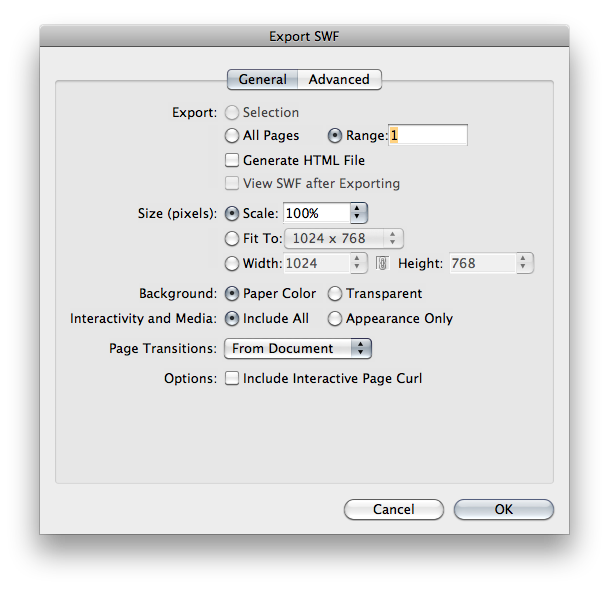
When you first run the script it will ask you where you would like to save all of the exported SWFs. I generally make a SWF folder inside my links folder for them. Next, the script will then prompt you with the SWF export options. When you click OK the script will batch export each page of the layout to and then place them back into the layout on their respective page. Now you can turn off the original design layer and export your layout with the placed SWFs to PDF. Update: After the script places the SWF on each page, each SWF is set to play on page load.

Downloads
The SWFpresenter script can be downloaded here.*
*updated to version 1.01
In case you are interested in all of the podcasts that I mentioned in my presentation you can download a PDF of them here.
This article was last modified on December 17, 2022
This article was first published on May 26, 2010
Commenting is easier and faster when you're logged in!

Recommended for you

Fun with Keynote Animations
If you work on a Mac, there is a good chance you have Keynote already installed....

InDesign Magazine Covers Your Version, Too
I’ve been the Editor in Chief of InDesign Magazine for 26 issues (that...

Your PDF Files May Show More About You Than You Expect
Imagine our surprise when some of our private paragraph style names leaked out i...