




[This is a guest post from our friend Jean-Claude Tremblay (@jctremblay), bilingual native of Quebec, Canada, and an all-around Creative Suite guru. Jean-Claude is the founder and manager of two InDesign User Groups (Montreal and Québec City), and does custom training and support for creative professionals.]
InDesign CS6 introduced Alternate Layout and Liquid Layout. One of the Liquid Layout page rule options is Scale. Easy to understand, it will scale everything for you to accommodate the pages’ new dimension. Great, but what if you don’t want everything to scale? Specifically, what if you want everything to scale BUT NOT the text size inside the text frames?
There is a long way to do it and an “alternate,” shorter way to do it.
First, let’s do it with the long way, which is how InDesign CS6 works by default. Start by creating your alternate layout by choosing Create Alternate Layout from the Layout menu or by choosing the same option from the Page Panel sub-menu. In the Create Alternate Layout dialog, choose a different page size, make sure you have the Liquid Page Rules > Scale option chosen, and the ‘Copy text style to new group style’ option checked.
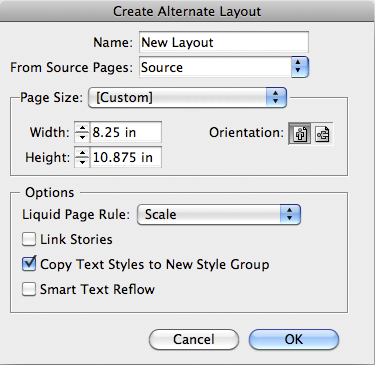
InDesign will not only scale everything in the new, alternate layout, but will also duplicate all the text styles into another style group without modifying the content of the styles itself, even if the text size will be reduced or enlarged. But wait – how does my text look scaled, if the style’s size attributes are not, and their is no + sign telling me there is some overrides applied?
Click inside some text and look at the Font Size field in the Control panel. Do you see something like this: [18pt (15.5pt)]? That’s because InDesign CS6 will scale everything by using the same behavior you get when your Preferences for General > Object Editing is set to Adjust Scaling Percentage, and it does this even if your Preference is set to the other option that actually resizes (not scales) text contents, Apply to Content.
So in your Alternate layout that was scaled, to make the text revert to the same size as in the original layout, you need to do two things: First, select everything on that page with the Selection tool and go to the Control panel menu and choose Redefine Scaling at 100%.

This retains the new type size and gets rid of the scaling attribute, the text field now reads just “15.5pt” for example, but introduces local overrides on the styles. The other step is you have to remove the overrides on all styles. I agree, if you have many pages this could be a painful process!
Now let do it with a shorter alternative using the Content Collector tool.
Click the Load Conveyor button located at the bottom right of the Conveyor (which automatically appears after choosing the Content Collector tool):

In the Load Conveyor dialog box, enable All Pages and disable Create a Single Set.

InDesign will load all the pages in the current layout as a separate groups (sets) of objects, one set per page, in the Conveyor. Now switch to the Content Placer tool, and in a new empty layout (or new empty page in the current one) with a different page size, just click and drag to place and scale each page’s worth of objects.
The good news is that the text in any of the text frames will not be scaled. (If you do want it scaled, hold down the Cmd (Mac) / Ctrl (Win) as you drag.) The only negative point is that you will not get a duplicate style set for your styles unless you manually do a duplicate of them first, then use the Map Styles features of the Conveyor. But you might not need it since you want the text to be the same size.
This article was last modified on December 30, 2021
This article was first published on January 8, 2013
Commenting is easier and faster when you're logged in!

Recommended for you
TypeTalk: Font Games Galore
Several type and font games are making the rounds on the Internet. Most are mean...

Out Now: The Ultimate Typeface Reference Book
As new fonts are continuously released and classic favorites modernized and expa...

Free Script for Removing the Overlapping Stroke for Paragraph Borders
As you probably know, InDesign now lets you create borders (or strokes) around o...