


Acrobat How-To: Setting PDF Open Options

If you routinely make PDF files for onscreen viewing or presentations, it’s important to put your best face forward. And that means controlling how your readers view the document when it first opens.
You can set parameters such as whether or not toolbars show or if the file opens in full-screen mode. You can decide if the window opens to spreads or single pages. And you can adjust the magnification so that the page appears at a larger size automatically.
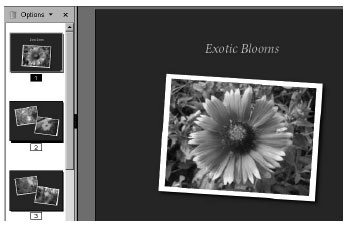
In this PDF tip learn how to set the initial document view in Acrobat 6. After reading it, see if you can retrace what the settings were for the file you’ve just opened! (Kind of a Zen exercise, admittedly.)
We’ve posted this excerpt as a PDF file. To open the PDF file in your Web browser, click this link: “Deciding What Your Reader Sees First“. You can also download the PDF to your machine for later viewing.
To open the PDF, you’ll need a full version of Adobe Acrobat (5 or higher) or the Adobe Reader, which you can download at www.adobe.com/.
To learn how to configure your browser for viewing PDF files, see the Adobe Reader tech support page.
Excerpted from ” The 100 Best Adobe Acrobat Tips & Tricks” © 2004 Donna Baker. Reproduced by permission of Pearson Education, Inc. Publishing as Peachpit Press. ALL RIGHTS RESERVED.
This article was last modified on June 16, 2004
This article was first published on June 16, 2004
Commenting is easier and faster when you're logged in!

Recommended for you

Building Presentations in InDesign
Mark Heaps shows how to craft presentations in InDesign that are both beautiful...

New Contest! The Riddle of the Hidden Characters
Hey folks, it’s time for another InDesign mystery that you can solve for a...
How to Create a Checkerboard Paragraph Rule
In a recent InDesign Secrets article, Keith Gilbert explored How to Add a Rule A...