



Acrobat 9 was announced on June 2, as David pointed out in a posting earlier this month. Since Acrobat 9 is due to be out “by July 2008,” according to the Adobe press release, I wanted to do some postings about some Acrobat 9 features that will be of particular interest to InDesign users. The one which I think is the most impressive is the incorporation of Flash into the PDF file format, and the new PDF Portfolio feature in Acrobat 9 and the free Reader 9. (I presented a free eSeminar on Acrobat 9 features this week on Adobe.com. I can’t tell you exactly when, but it should be posted to this link for Adobe’s On Demand eSeminars before too long.)
Here’s the problem that PDF Portfolios solve: You have a group of files you’d like to share with another person, or distribute to a number of people (a press kit, or a presentation, or whatever). The files are of various kinds?PDF files, a PowerPoint presentation, a video, a Word file, and the source files they were created from. How do you pass these files on to others in a way that gives them context? How do you get them to work on both Mac and Windows platforms? If you created a Zip archive, you couldn’t control the way they’d be viewed. Creating a website could be done, but it requires a lot of expertise. PDF Portfolios make the process easy.
Those of you who have used the PDF Package feature in Acrobat 8 know how handy this feature is to create a collection of PDF files and the other formats that Acrobat can read. The files retain their integrity within a single PDF file and can be imported and exported from the Package. A PDF Portfolio takes that to a much higher level! It can store PDF files along with any other kind of file within a single PDF file. But it provides a finished Flash interface of your choosing for viewing and manipulating the enclosed files. You can optionally add a welcome screen and/or a header to introduce the PDF Portfolio. You can choose a layout appropriate for your audience. You can add comments to each file to explain it in context. Below is an example of a welcome screen for a collection of files I created in a short amount of time.

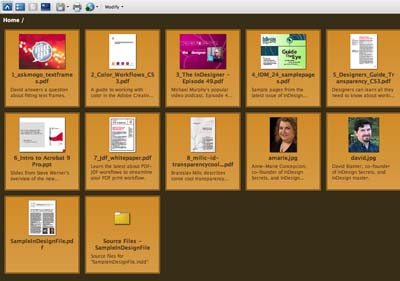
By default, the files are shown in a Basic Grid layout shown below. I included some PDF files, two FLV movies, a PowerPoint presentation, two JPEG files, and a folder of source files I describe below:
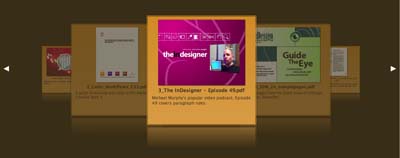
But you can choose from other layouts, like this Revolve layout, depending on your target audience. (Notice the similarity to Apple’s CoverFlow view from iTunes and the iPhone.)
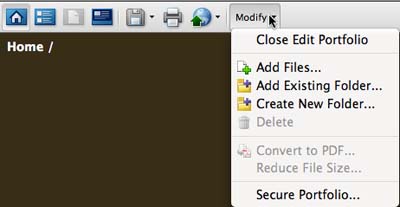
The PDF Portolio can be viewed in either Acrobat 9 or the free Reader 9. You can control your view of the PDF Portfolio and manage the files using the toolbar across the top of the display (shown below). The icons (from left to right) take you to the Home view, Details view, Preview the current file, take you to the Welcome page, Save an individual file or the entire portfolio, Print the PDF files, Upload the Portfolio for emailing or sending to the hosted Acrobat.com service we’ll write about in another posting), and show a menu for editing the portfolio.
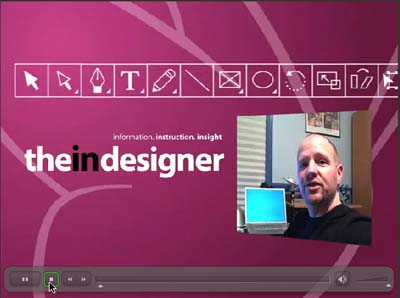
As I mentioned above, Acrobat 9 and Reader 9 can create PDF files which handle Flash video (FLV) and SWF files natively. This means you no longer have all the hassles of getting movie formats to play reliably, and the annoying authentication popups! I included a couple FLV files in my PDF Portfolio, including an episode from Michael Murphy’s The InDesigner video podcast. (I’ll describe how I did this in the next posting.) When you double-click on the FLV (converted to a PDF file so I could include a movie poster), it plays immediately. It shows a Flash control bar automatically.
I added a comment below each file to explain what it was. When you switch to Details view, you can see an OS-type view of the file details which can be sorted on each category. This includes a preview, filename, comments, and file information.

A PDF Portfolio can store any kind of file within it?even formats it doesn’t read. For example, I created a simple one-page InDesign file and made a PDF from it. Imagine that you’d like to distribute the InDesign file and all its linked files and fonts. I packaged the InDesign file, creating the usual structure of INDD file, Fonts folder, Links folder, and Instructions.txt. You can place an existing folder into a PDF Portfolio and it retains the structure, which you can see below.

The fonts, linked graphics, and InDesign files retain their integrity and can be saved out from the PDF Portfolio as needed.
In the next posting, I’ll explain more about how you can customize a PDF Portfolio and how you can handle video formats.
This article was last modified on January 18, 2023
This article was first published on June 22, 2008
Commenting is easier and faster when you're logged in!

Recommended for you

InDesign Eye Candy, part 4: Pattern Swatches
Unlike Photoshop and Illustrator, InDesign doesn’t have pattern swatches t...

Reshaping Objects
You don't have to limit your designs to use just the few basic shapes you can dr...

Tip of the Week: Making Torn Paper Effects
This InDesign tip on making torn paper effects was sent to Tip of the Week email...