




Bonnie wrote:
I’m designing a book where the main body has two columns of text. My client wants a line down between the two columns, but then the headings span across the two columns.
Here’s an example of the page, the way Bonnie (well, her client) wanted it to look:
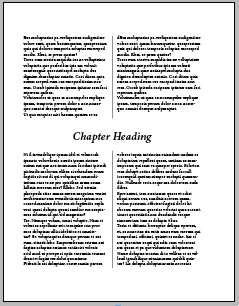
Now I personally think the line down the middle makes this difficult to read, but who am I to argue with Bonnie (or her client)?! She had been creating this with five different text frames: one for the column in the upper-left which threads to another frame in the upper-right, which threads to a wide text frame where the heading appears, and so on. There has to be a better way! Don’t worry, there is.
Split and Span
InDesign CS5 introduced the Span Columns feature, which is also the Split Columns feature. This means you can use a single text frame to fill the whole page and then tell each paragraph where you want it. In this case, I made one text frame on a master page (you don’t have to do this on a master page, but it’s useful in this case). You can make it either a 1-column or a 2-column frame, using Object > Text Frame Options. Then I drew a vertical line down the middle of the page:
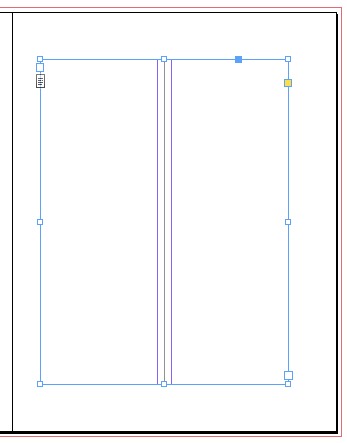
In the image above, it’s a single 1-column frame. The purple guides you see are actually column guides. But as I said, this could have been a single 2-column frame. Doesn’t matter for this tip!
Next, on the document page, I flow the text and apply two paragraph styles (for the heading and the body text). In this case the heading paragraph style is just centered, and the body text (which I called “two col”) is set to Split into two columns!

As I said, the ability to split into two columns is actually part of the Span Columns feature — here handled as part of the paragraph style:

However, if you used a 2-column text frame instead, then you would leave the body text paragraph style alone (no split or span) and you’d set the Paragraph Layout pop-up menu (in the Span Columns pane above) to Span Columns. That way the heading would span across both columns of the 2-column text frame.
Knock Out That Rule
Of course, the image above has a little problem: the vertical rule goes right through the heading! That’s bad. But it’s easy to knock out: Just use a Rule Above (or Rule Below) set to Paper color! That makes everything behind it disappear, giving us the effect we’re looking for:
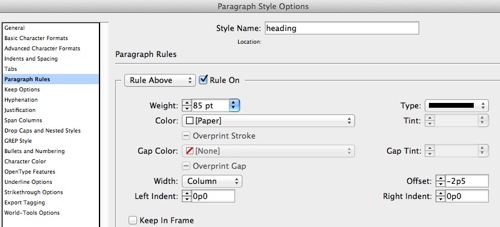
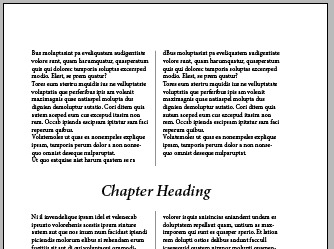
What do you think? Other ways you’d create this effect? I’m sure there are clever scripting solutions, but this is easy and very flexible. If the text reflows, no problem? everything updates automatically. The only problem I can see immediately is if the chapter heading is really long and ends up on two lines. In that case you’d need a different 2-line-tall Paper rule paragraph style.
This article was last modified on December 30, 2021
This article was first published on January 23, 2013
Commenting is easier and faster when you're logged in!

Recommended for you
Make Headings Span Across Multiple Columns in InDesign
Master InDesign’s Span Columns feature with Pariah Burke.
How to Add Paragraph Rules in PowerPoint
This clever workaround creates InDesign-like paragraph rules in PowerPoint.

Vertical Rules (Pre-CC2017)
You can define horizontal rules (one before, one after) in InDesign's paragraphs...