



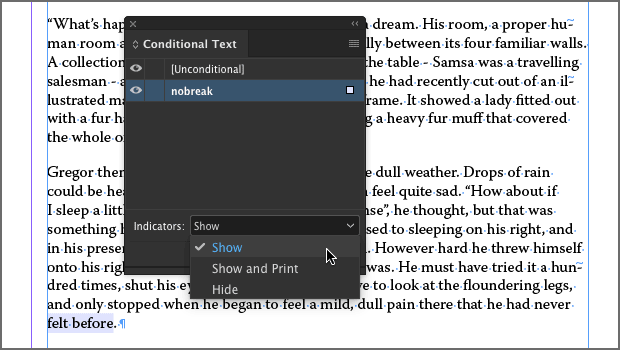
It’s great that you can easily apply the No Break feature to any span of text to fix all kinds of typographic problems. But if you’re working with text that will change later on, it might be very helpful to show where No Break had been applied. You could accomplish this by making a character style that applies No Break—and then using that style in every instance.
But if you want a quick and easy alternative to show every use of No Break in a document, check out Peter Kahrel’s Highlight No Break script.
It uses the Conditional Text feature to apply highlighting to any No Break text.

text with No Break applied

The no break condition applied by the script
The highlighting is just showing a condition created by the script, so you have control over whether it appears onscreen and/or in print.
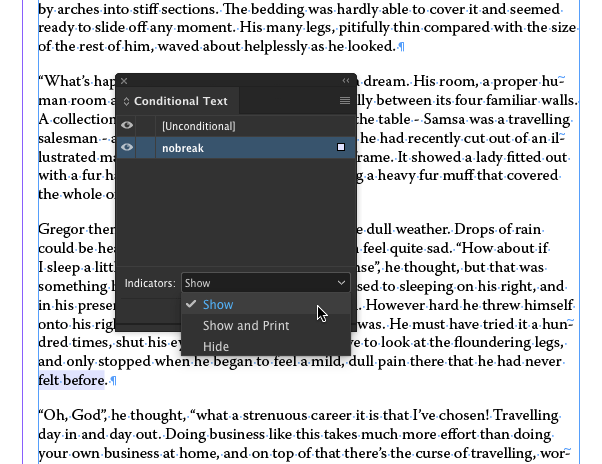
The highlighting also disappears when you switch to Preview mode.
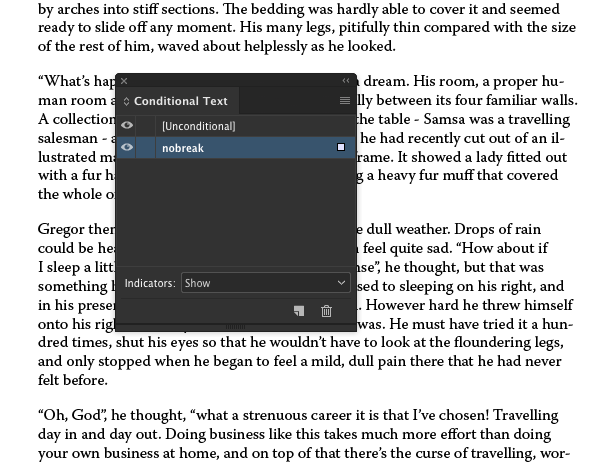
It couldn’t be much easier to use. Just run the script. The condition is added and applied to text throughout the document!
Simple and useful. Gotta love that.
This article was last modified on December 12, 2023
This article was first published on December 3, 2018
Commenting is easier and faster when you're logged in!

Recommended for you

This Week in InDesign Articles, Number 123
Last week was “pi approximation day” (22/7) so I’ve been thinking a lot about es...
How to Optimize Your Editorial Workflow
Article presented by It’s amazing how sometimes something so small...

Scripts from the Crypts
Mike Rankin digs deep into the InDesignSecrets archives to find 20 scripts that...