




When you insert a table into a text frame (Table > Insert Table) , by default the table’s width exactly matches the text frame’s width. But as anyone who’s worked with InDesign tables knows, the two measures are actually independent. If you drag a side handle of a text frame, the table stays the same width; if you change the width or number of table columns, the text frame stays the same width.
A table can easily extend beyond the boundaries of its containing text frame (as anyone who’s ever imported a Word file with a table has discovered) or be much narrower than the frame, such as when you want the table centered in the frame:
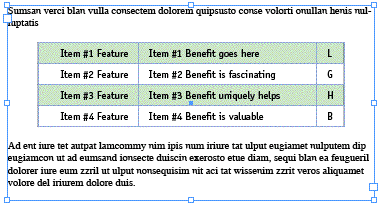
With all this flexibility InDesign offers to table designers, one important feature is missing: An editable Table Width field. I’ve been working with ID for years but it took a student in a class I’m teaching this week to point this out to me.
And it’s true – all we have is a single Column Width field. You might guess that selecting multiple columns and entering a measure in the field would set the total width for the selection, but all it does is apply that same measure to every column in the selection. If you select three columns and enter “5 in” you get three 5″ columns. (Which can be useful, of course, but doesn’t help us here.)
There are ways to ascertain a table’s width by using the Rulers or the Measure tool, but neither helps when you want to precisely *set* a width for a table.
The Merge Workaround
The same student who asked “Is there a way to set the width of a table?” had a workaround she’d been using which I thought was clever, and I told her I’d post it here.
If you just want to know the width of a table, not change it, do this:
- Select any row of the table.
- Choose Merge Cells from the Table menu or contextual (right-click) menu.
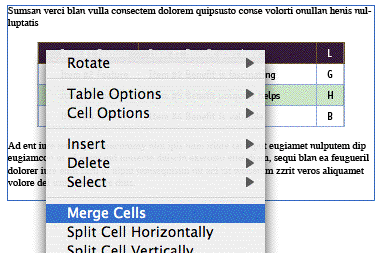
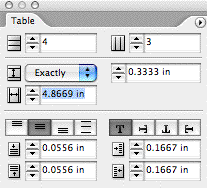
- Look at the Column Width field in the Control or Table palette; that’s your table width.
- Now immediately Undo (Command/Ctrl-Z) to get your separate cells and their contents back.
If you might want to change the width of the table, start with an empty row:
- Select an empty row (no content) in your table. If none exists, add one temporarily (click an insertion point in any cell and choose Insert > Row from the Table menu or the contextual menu), and select that empty row.
- Merge the cells in the empty row.
- Enter the desired width of the table in the Column Width field in the Control or Table palette and press Return/Enter. The entire table resizes to match.
- Delete the empty row, which should still be selected (choose Delete > Row from the Table menu or contextual menu).
Thanks very much to Dorothy at HDR in Omaha, Nebraska, for this tip. She’s one of almost 50 HDR staff members from around the country who have flown in for training this week as the company prepares to officially move to Adobe InDesign. Woo-hoo!
This article was last modified on December 18, 2021
This article was first published on January 18, 2007
Commenting is easier and faster when you're logged in!

Recommended for you

Monotype Imaging Releases the Monotype Library, OpenType Edition
Monotype Imaging has introduced the OpenType® version of its Monotype® Library o...

How to Refine Illustrator 3D Artwork in Adobe Dimension
Learn how to bring 3D artwork created from Illustrator into a true 3D environmen...
FontAgent Pro Server Debuts
Insider Software announced FontAgent Pro Server, an enterprise server version of...