



I’m occasionally asked how an InDesign user can lock certain content to prevent it from being edited. The short answer is that it’s simply impossible to fully protect the content of any document short of keeping it locked away on a password protected computer.
But for a workgroup where various people may be working on one layout, once a story is finalized it’s good to let others know. While there’s no straightforward lock content command, there is a way to do it.
Right click (control+click with a one button mouse) the story you wish to lock and from the contextual menu choose InCopy > Export Selection.

Choose a location and name for the file and click save. The frame will display a new icon in the upper left corner.
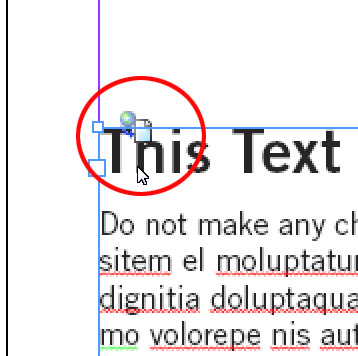
The icon indicates that the content is available for editing using an InCopy workflow, but that content must be checked out first in order to edit it. Any attempt to make edits will bring up this warning:

This is obviously not a perfect solution, but in a collaborative workflow where more than one person is working on a layout it’s a quick and easy way to make sure content isn’t changed by accident.
This article was last modified on December 19, 2021
This article was first published on May 17, 2009
Commenting is easier and faster when you're logged in!

Recommended for you

The affects and effects of effective Effects
In the world of page layout features there are the bread-and-butter features suc...
Yes Virginia, There is a Translate Feature
Have you ever needed to break the news to a kid that there is no Santa Claus? Se...
Relink from One Image File Type to Another
Need to relink all your TIF images to PSD (or JPG to PDF, or whatever)? CS4's Li...