



This InDesign tip on How to Convert Document Pages to Master Pages was sent to Tip of the Week email subscribers on August 10, 2017.

Sign up now and every week you’ll get a new tip, keyboard shortcut, and roundups of new articles, plus exclusive deals sent right to your Inbox!
Just scroll down to the bottom of this page, enter your email address, and click Go! We’ll take care of the rest. Now, on with the tip!
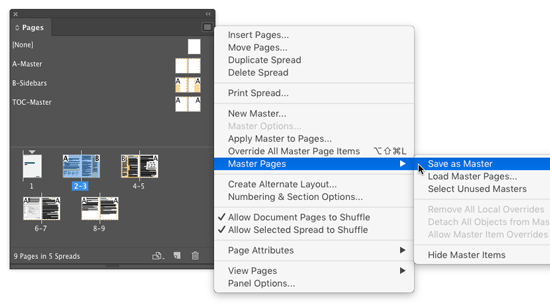
If you ever have the need to a document page into a master page, you can do so easily, by either of these methods:
1. Select the document page in the Pages panel, and choose Master Pages > Save As Master from the panel menu.
2. Select the document page in the Pages panel and drag and drop it into the master pages area.
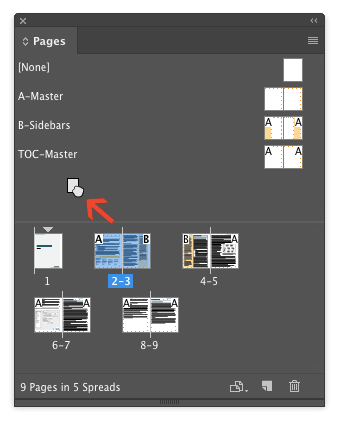
Note: If you’re working in a document with facing pages, be sure to select the whole spread of document pages. For example, if you use method 2, drag from the page numbers, so you get the whole spread.

If you try to drag just one page from the spread, it won’t work.
Also: If the document page was based on an existing master page, the new master will also be based on that master.

This article was last modified on July 25, 2019
This article was first published on August 15, 2017
Commenting is easier and faster when you're logged in!

Recommended for you

InDesign How-to Video: Navigate Panels From the Keyboard
In this week’s InDesignSecrets video, Mike Rankin demonstrates how to navigate a...

Illustrator Downloadable: Fancy Fans Art Deco Patterns
12 gorgeous vector patterns to add a sleek and swanky style to your designs
Illustrator Downloadable: Retro Rainbow Pattern Set
Add cheerful colors and shapes to your designs with these Illustrator patterns