



This InDesign tip on the fastest way to reset a tint to 100% was sent to Tip of the Week email subscribers on May 18, 2017.

Sign up now and every week you’ll get a new tip, keyboard shortcut, and roundups of new articles, plus exclusive deals sent right to your Inbox!
Just scroll down to the bottom of this page, enter your email address, and click Go! We’ll take care of the rest. Now, on with the tip!
Sometimes the simplest solutions are right at your fingertips but you might not realize they’re there. Case in point: when a selected object’s fill or stroke set to a tint of a swatch color, and you want to reset it to 100%, how do you do it?
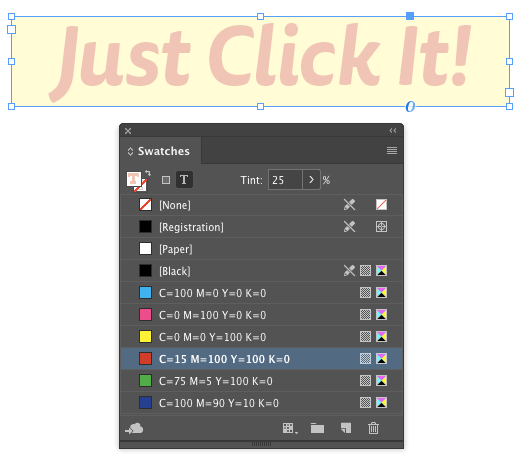
Do you use the Tint slider in the Swatches panel or the Control panel? Don’t bother. All you have to do is click on the swatch.
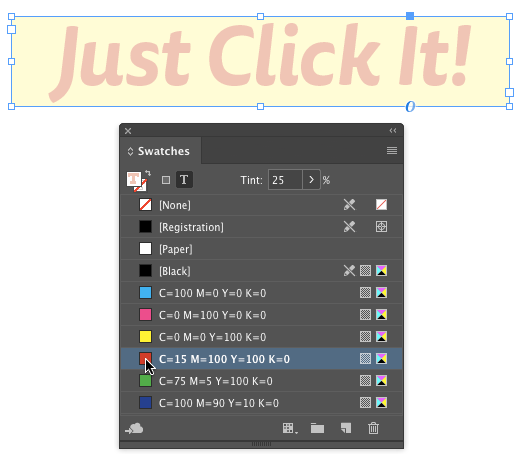
Boom. The fill or stroke is instantly reset to 100% of the swatch color.

This article was last modified on July 25, 2019
This article was first published on May 23, 2017
Commenting is easier and faster when you're logged in!

Recommended for you
How to Change Text Color Inside Multiple InDesign Table Cells
Use this Type tool trick to change the color of the text in multiple table cells...

Create InDesign Swatch Groups Instantly
Khara Plicanic shows how to quickly create a swatch group in InDesign from selec...

Free Webinar: Choosing Colors for Design and Marketing Success
Join us Tuesday, June 17 at 11 am Pacific for our free 1-hour webinar to dive in...