



Ever wish you could include YouTube content in an interactive document exported from InDesign? You can do it if you export to EPUB 3 (fixed-layout or reflowable) or Publish Online.
First, go to YouTube and find the video you want. Then in the controls under the video, click Share, and then Embed.
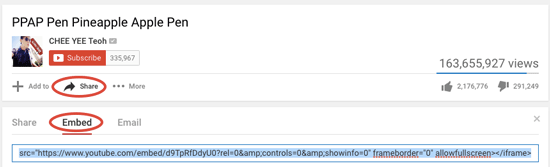
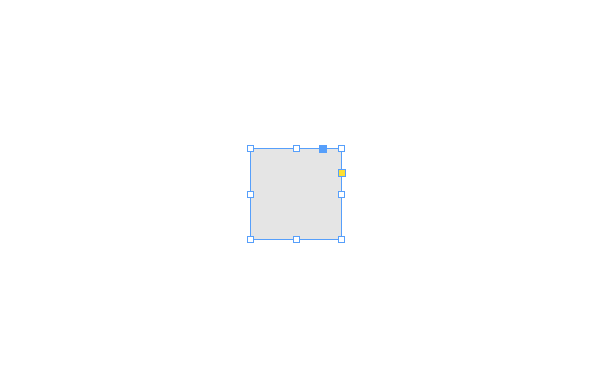
Copy the full embed code. Switch to InDesign. Make sure nothing is selected, and then paste. At first, you’ll see a small square while InDesign is checking the embed code.
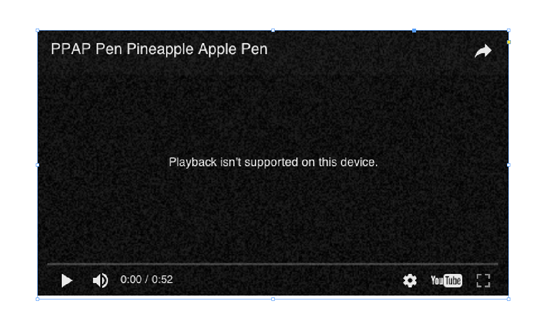
Then you’ll see a full-size frame where the video will be. Don’t worry if it shows an error message. That won’t show up in your exported file.
Position the video frame where you want it in your layout.

You can preview the video in the EPUB Interactivity Preview Panel.
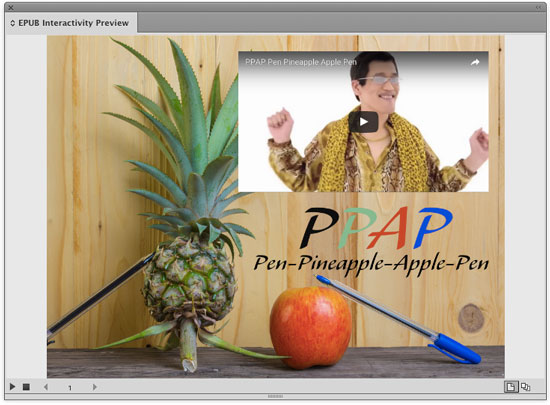
Then export to EPUB 3 and/or Publish Online. Note that the EPUB will not pass a validation check because the YouTube video is a remote resource not listed in the content.opf file inside the EPUB package. But as long as you have an internet connection, the video will play inside the EPUB.
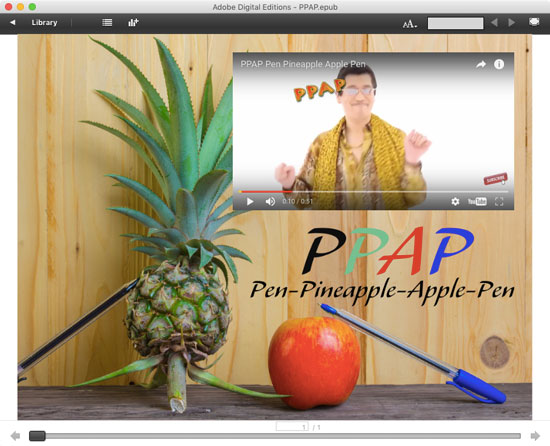
To see an example, check out this Publish Online document, featuring the silly but incredibly popular Pen-Pineapple-Apple-Pen song.
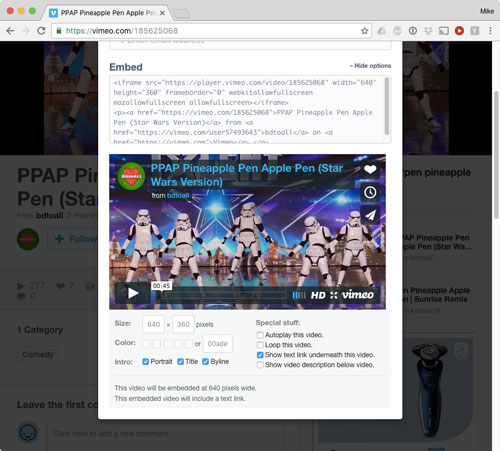
By the way, this same trick for Vimeo videos too. Just click on the Share button, then click on the embed code, copy it, and paste in InDesign.

Also, you can click on Show Options and decide whether to include things like the title, byline, text link, etc, before copying the code.
This article was last modified on January 12, 2026
This article was first published on November 29, 2016
Commenting is easier and faster when you're logged in!

Recommended for you

MacBook Pro Touch Bar: Where are my function keys?
Two solutions to solve the problem of the missing function keys on newer MacBook...
Tip of the Week: Seeing Page Sizes with the Page Tool
How to see the size of any document page in InDesign, using the Page tool.
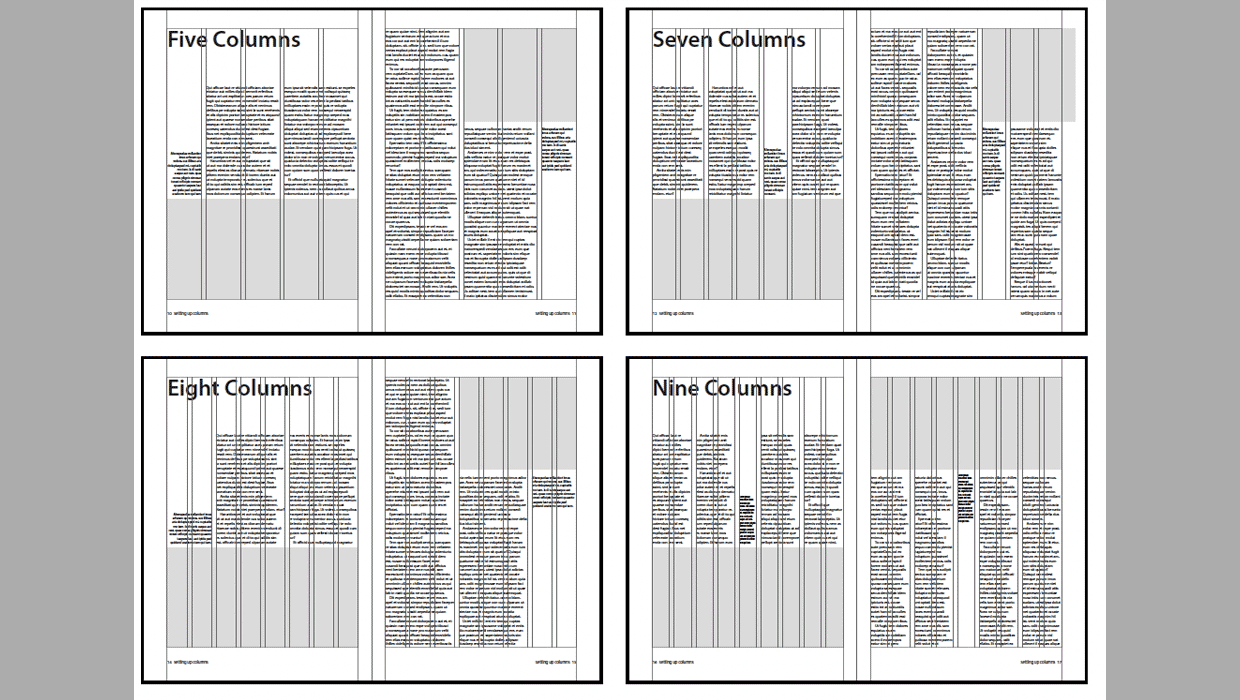
Working with Grids in InDesign
Greater confidence in your design, a more efficient workflow—really, why wouldn'...