




You have text in two frames, one positioned above the other, and you want to ensure the space from one text baseline to the next is consistent. How do you place the text frames properly?
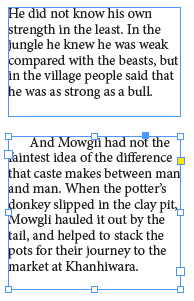
Well, you may know that InDesign has a Baseline Grid feature, and if you locked the baselines to that underlying grid, it would be pretty easy. But there are times you may not want to have the constraints of the baseline grid. (Honestly, I hardly ever use a baseline grid, as I generally find it frustrates me more than it helps. But I know many people who love the grid thing.)
So here’s the trick:
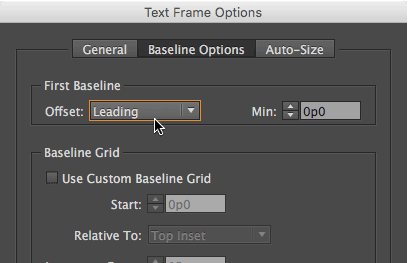
First, select the second frame (or both of them), choose Object > Text Frame Options, click the Baseline Options tab, and set the First Baseline Offset pop-up menu to Leading:
Next, double-click the bottom edge handle of the top frame so that it snugs up against the last baseline of the text frame. (That’s basically the same as choosing Object > Fitting > Fit Frame to Content.)
Then drag the bottom frame up until it snaps against the bottom of the top frame. You can use Smart Guides to ensure that it is in the correct position:
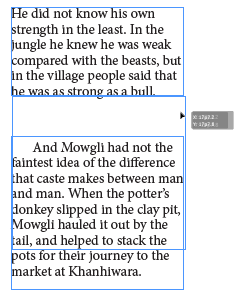
When you let go, the two frames will be next to each other, and because the First Baseline Offset is set to Leading, it will be in exactly the right place:
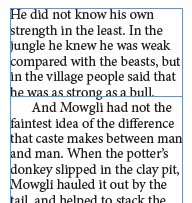
Of course, this relies on the leading (the space from one baseline to the next) being consistent; so you want to ensure that you have the same leading throughout the paragraph.
Here’s another article on why that First Baseline Offset is so important to pay attention to.
This article was last modified on July 25, 2019
This article was first published on July 11, 2016
Commenting is easier and faster when you're logged in!

Recommended for you

TypeTalk: Keep Words Together
Q. What is a nonbreaking space? A. This space is actually a command that prevent...
Prepress Training Solution Adds More Font Management Tutorials to Online Library
Prepress Training Solution, (PTS), the premier online training provider to the g...

PhotoSpin's Online Image Library is Growing
As with every month, PhotoSpin uploaded to their royalty-free subscription based...