



In the latest podcast (episode 54), David and I talked about “glitches and gotchas” in trying to mix InDesign CS2 and CS3 for the same project, a situation faced by thousands of users during this time of transition. To learn all our tips on the topic, I recommend that you listen to the podcast, or wait a couple weeks until the transcript is up. But in the meantime I thought one nugget of information was important enough to pull out and write up as a standalone tip for the blog.
The issue has to do with copying and pasting between the two versions. A user had asked how to get a sidebar (which was a mix of image and text frames) from an InDesign CS2 layout into a CS3 layout.
Copying and Pasting Doesn’t Work
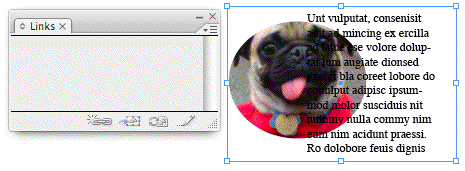
If you try to just select the objects in CS2, copy them, and paste them into CS3, it comes in as an unknown format. It looks the same, but it’s similar to an image — it’s one object (ungrouped), uneditable, and it doesn’t show up in the Links panel either.
Here’s an example. First, I select two items in my CS2 layout, a circular image and an overlapping text frame (the image has a text wrap applied), and copy them (Edit > Copy) to the clipboard:
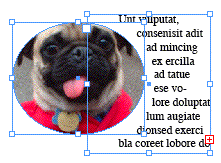
Then I switch to InDesign CS3 — the two programs have no problem running concurrently — and paste (Edit > Paste) the contents of the clipboard into a new document.
In the image below, I’ve left my pasted objects selected and opened the Links panel so you can see that though it looks like an image (one image frame with a mix of text and image — note how the doggie lost its text wrap, too), it’s not an image, as evidenced in the Links panel. David says it’s something like an “embedded PDF,” similar to what happens when you copy/paste artwork from another program into InDesign, instead of placing it:
Use Snippets Instead
As often happens during our podcasts, serendipity reared its lovely head. While David was talking about the hazards of copying/pasting artwork, I was testing to see if exporting the selection as an InDesign Snippet would work.
I had just discovered that yes, it appeared to do the trick, and was waiting for him to pause so I could mention it, when he mused aloud, “Hmmm. I wonder if snippets would work?” Heh.
To export a selection as an InDesign Snippet, choose File > Export and select InDesign Snippet as the file format:
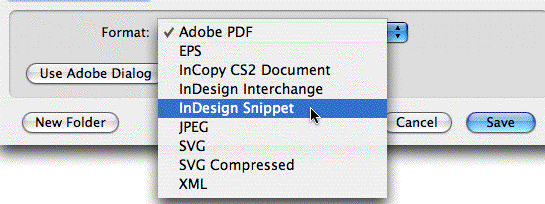
Doing it this way (as opposed to dragging and dropping the selection to the Finder/Windows Explorer or to Bridge, which creates snippets as well) lets you name the snippet file as you save it. But any method would work.
Then switch to the other version of InDesign and bring the snippet in, either by dragging and dropping it, or by choosing File > Place and double-clicking on the snippet file.
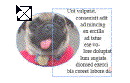
When I place the CS2-created snippet in CS3, I get a nice little snippet preview in my “Place Gun” (such a violent program, no?):
And after I pull the trigger — err, click the mouse button — the CS2 artwork comes in fully editable, and even the text wrap is intact:
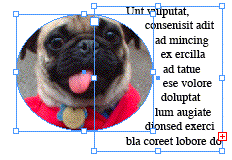
Works Backwards, Too
Copying and pasting object selections from CS3 into CS2 — the reverse of what I was talking about above — has the same problem and the same solution. In other words, don’t copy/paste. Instead, export the selected objects in your CS3 layout to a Snippet, then Place or drag and drop the snippet file into your CS2 layout.
This article was last modified on December 18, 2021
This article was first published on July 11, 2007
Commenting is easier and faster when you're logged in!

Recommended for you

The affects and effects of effective Effects
In the world of page layout features there are the bread-and-butter features suc...
Style Groups Good or Potentially Evil?
I just started working with the new CS3 feature of Style Groups. These are littl...
News: InDesign Drops Support for Print Publishing
[Editor’s note: This was our 2008 April Fool’s Post] We’ve jus...