



I often make graphics (such as logos or ads) in InDesign, but they’re in the middle of the page. So when it comes to exporting the graphic as a PDF or INDD or whatever, I get too much white space around the edges.
For example, I want to export the artwork on this page:
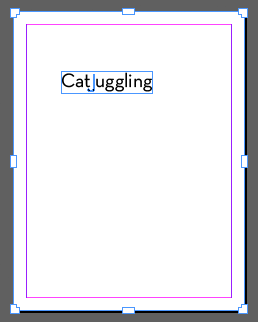
Before I export this page, I need to resize it to the size of the artwork. I could use File > Document Setup, but that’s a hassle because I don’t know how big it should be, and because after I resize the page, the artwork will probably not be in the middle of the page anymore.
So I use a different technique instead: the Page Tool. When you choose the Page tool in the Tools panel and click on a page in your document, it gets highlighted with side and corner handles (as in the image above). You can drag those handles and it looks like the page is being resized… but it’s just teasing you, because when you let go of the mouse button, the page snaps back to the way it was!
The Trick
Fortunately, there’s a trick: If you hold down the Option/Alt key when you drag a handle with the Page tool, then you really do change the page size. Try it! It’s cool.
So when I Option/Alt-drag the upper-left corner of the page down to the upper-left corner of the object (in this case, a text frame), it snaps against the object edge:
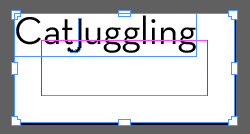
However, in the image above, you can see that I can’t quite get the lower-right corner up to the lower-right corner of the object. That’s because of the page margins. InDesign doesn’t let you make a page so small that the margins would overlap.
You’d think you could simply choose Layout > Margins and Columns to change the margins, but unfortunately that only changes them for the current page or spread. Instead, you first need to click the master page in the Pages panel. Then, with that selected, you can choose Margins and Columns. Set the Margins to zero, click OK, and then you’ll be able to reduce the page as small as you want:

Getting Just the Right Size
As I said earlier, the Page tool snaps the edge of the page to the edge of the object. In the example above, I have just one text frame, so it works great. But sometimes I find it helpful to draw out a blank frame (with no fill or stroke) around the artwork, and then use the Page tool to snap to it.
For example, if you know you want your final artwork to be exactly 10 cm x 20 cm, you could make a frame that size, position it around the artwork, and then use the Page tool to snap to the edges of that frame. (Then you could delete that frame if you want.)
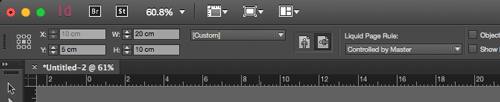
Alternatively, you can just get the page size close with the Page tool, and then adjust it to the exact size you need by changing the W and H values in the Control panel:
Finally, when the page size is just right, you can use File > Export to get your JPEG, PNG, PDF, EPS, or whatever file format you need.
[By the way, don’t send me hate mail for the text in the graphics above! It’s just a reference to an old Steve Martin joke. But I have cats myself and I do not condone juggling them.]
This article was last modified on July 25, 2019
This article was first published on July 16, 2015
Commenting is easier and faster when you're logged in!

Recommended for you

InDesign How-to Video: How to Work With Multiple Page Sizes in One Document
Use this new trick to create book spines, gatefolds, or even put business cards,...
Creating Mixed Page Orientations in the Same Layout
There are two ways to create mixed page sizes in InDesign CS5, but only one lets...

When the Document Size Won’t Change
When a reader changes Document Setup, nothing happens! Here's one common reason...