



Many users of InDesign like to assign a custom keyboard shortcut for their oft-applied paragraph and character styles. Why? Because it’s easier to hit a shortcut key combo than to scroll through a tiny panel with dozens of styles looking for the one you want to double-click. (And not everyone is a fan of Quick Apply.)
But there’s one default text style, fairly frequently applied, that InDesign won’t let you add a keyboard shortcut to: the [None] style in the Character Styles panel. It’s completely uneditable. (Which is a little weird, since you can edit the default paragraph style, [Basic Paragraph].)

If you’ve applied a given character style to some text, and you want to remove that formatting and reset just that instance to [None], you have to select the text, open the Character Styles panel, and click [None]. There’s no other fast way to do the job (again, other than Quick Apply — topic for another post). If you’re the kind of person who has to “un-Character Style” more than a few times in a project, wouldn’t it be nice to have a keyboard shortcut to speed things up?
Make a new [None]
Select some text that is already set to Character Style: [None] and has no local overrides applied — that is, when the text is highlighted, no plus symbols appear next to the paragraph style that the text is formatted with. (Newbies: plus symbols mean the selection has locally-applied formatting.)

Now hold down the Option/Alt key and click the New Character Style button at the bottom of the Character Styles panel. InDesign picks up the fact that it’s based on the [None] style, and that you have no local formatting in the selection, so the Character Style Options dialog box says this style will do nothing other than apply [None]. Nothing! Perfect! Go ahead and add your shortcut in the field:
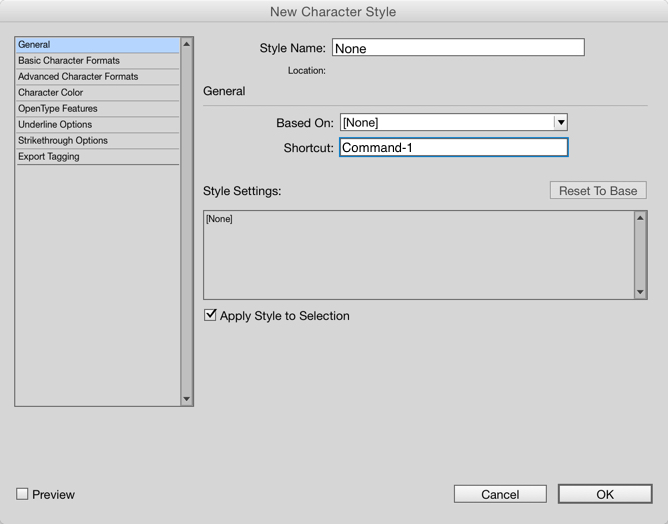
Your new “None” style appears in the Character Styles panel just line any other style, along with its keyboard shortcut. Now when you want to change a character-styled selection back to [None], just use the keyboard shortcut for your new “None” (or whatever you named it) style. The character style’s formatting is removed and the text reverts to whatever the paragraph style says it should be.
It’s perfectly fine to leave this as is, forever, in the file. But if having two “None’s” makes you nervous, when you’re done with the job, just delete the new None and replace with the default [None].
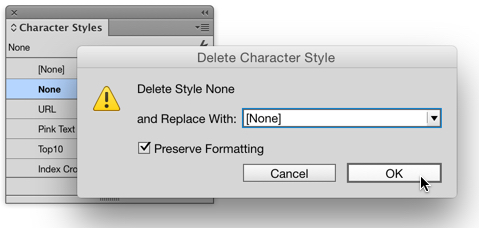
It makes no difference if you choose to preserve the formatting or not, since there’s no formatting to preserve! Isn’t life simple when all you want is nothing?
This article was last modified on July 25, 2019
This article was first published on June 10, 2015
Commenting is easier and faster when you're logged in!

Recommended for you

InDesign to EPUB Text Scaling
Does your text mysteriously change size when you export from InDesign to EPUB? T...
How to Assign Keyboard Shortcuts to Scripts in Photoshop
Assigning keyboard shortcuts to scripts can make your workflow go even faster an...

Search All InDesign Keyboard Shortcuts Quickly with Show Set
Sign up for the InDesign tip of the week to get a new tip, roundups of new artic...