



This tip was sent to Tip of the Week email subscribers on April 2, 2015.

Sign up now and every week you’ll get a new InDesign Tip of the Week and Keyboard Shortcut of the Week, along with roundups of new articles at InDesignSecrets and CreativePro, plus exclusive deals sent right to your Inbox!
Just scroll all the way down to the bottom of this page, enter your email address, and click Go! We’ll take care of the rest. Now, on with the tip!
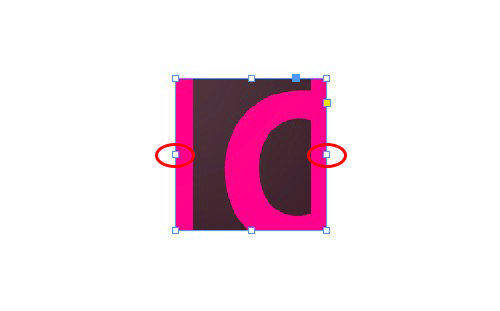
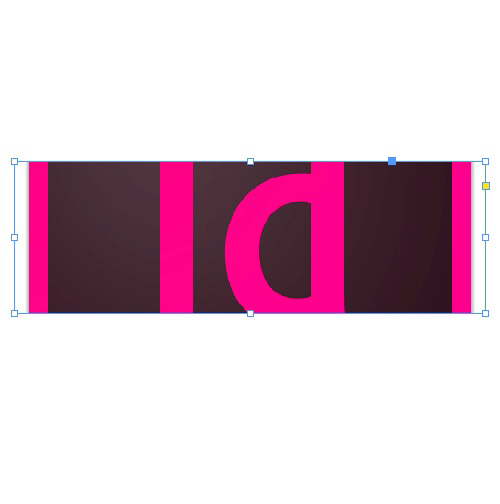
Want a quick way to fit a frame to some placed artwork? You can use the Control panel, or keyboard shortcuts, but sometimes it’s most convenient to just double-click on the frame itself. And where you double-click on the frame will determine the results you get.
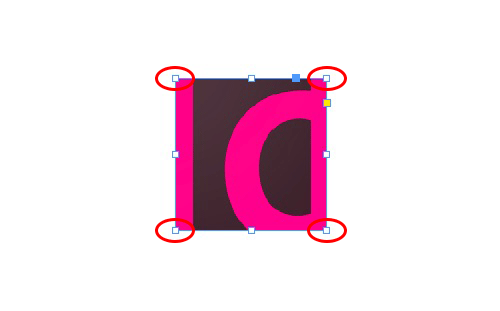
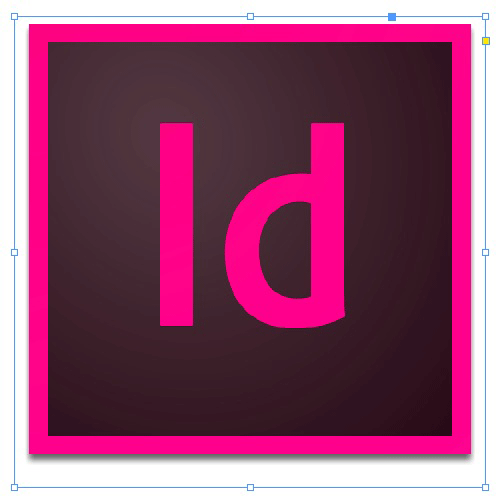
If you double-click any corner point with either the Selection tool or the Direct Selection tool, the frame will resize to fit the entire art.
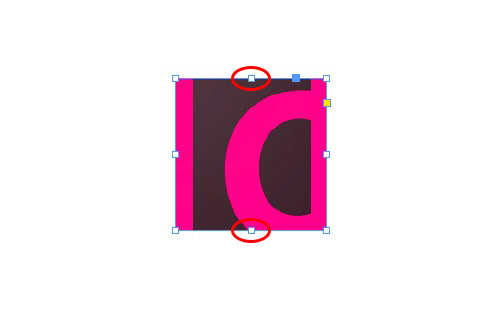
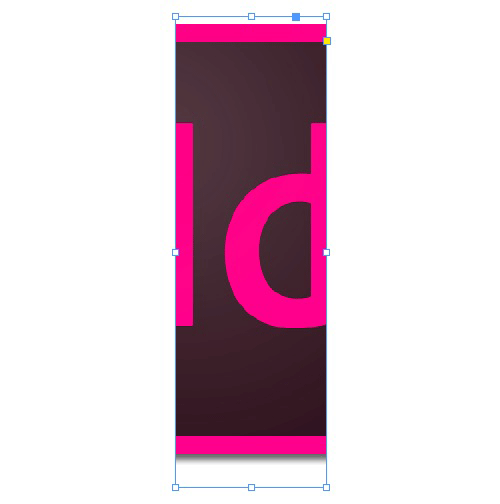
If you double-click on the control points in the middle of the top or bottom sides with the Selection tool, the frame will fit the image height, but the width will be unaffected.
If you double-click on the control points in the middle of the left or right sides with the Selection tool, the frame will fit the image width, but the height will be unaffected.
This article was last modified on July 25, 2019
This article was first published on April 7, 2015
Commenting is easier and faster when you're logged in!

Recommended for you

Using Math Symbols in InDesign
Use the InDesign Glyphs panel to populate your work with the correct math symbol...

Tip of the Week: Fill and Stroke Shortcuts
This InDesign tip was sent to Tip of the Week email subscribers on March 14, 201...

CreativePro Tip of the Week: Transforming Type Shapes in Illustrator
This CreativePro Tip of the Week for transforming type shapes in Illustrator was...