



When you want to combine together different kinds of files for distribution, PDF is definitely the way to go. It’s a universal format that anyone can view or print. A good approach to do this is to create PDF files from the various files you want to combine (InDesign, Word files, image files, or other PDFs for example), and then use Acrobat’s Create PDF from Multiple Files feature found in Acrobat 7 or 8 Professional.
However, less well known is that you can let Acrobat 7 or 8 do the heavy lifting of converting InDesign files into PDF during the process. This can save a lot of time and effort. Both Acrobat versions can convert InDesign files into PDF, and you can choose the PDF preset to use during the conversion. While this can be done in a very limited way in Acrobat 7, Acrobat 8 Professional gives you much more control, and makes the process a snap. Acrobat 8 Professional even gives you two entirely different ways to assemble your PDF file, either as a single PDF file or as a PDF package, where each PDF maintains its own integrity.
Let’s start with a collection of files we want to assemble together. For our tutorial, we’ll pick two InDesign files, a PDF file, two TIFFs and a JPEG file. If you’re using Acrobat 8 Professional on the Mac, you can include PDF files, and convert all the file formats found in Acrobat’s Convert to PDF preferences (common image formats, EPS/PostScript, InDesign, HTML and Text files). The Windows version of Acrobat also has conversions for Microsoft Office formats like Word, Powerpoint, and Excel; on the Mac, you’ll have to convert these to PDF ahead of time. Important: Acrobat 8 Professional only converts InDesign CS2 files or earlier. To convert InDesign CS3 files, you need to update Acrobat to Acrobat 8.1. You’ll find the Acrobat updaters for the Mac here and for Windows here.

Acrobat 7 Professional supports the same conversions. However, to do the conversion of InDesign files in Acrobat 7 Professional, you’ll need to install a plug-in for Acrobat on your computer. You’ll find this plug-in on the Installation CD for InDesign CS2 or the Adobe Creative Suite 2. You’ll find it on the Extras CD in the Technical Info folder > InDesign CS2 folder. Read the InDesign Automation for Acrobat 7.pdf found in that folder for more details. For Acrobat 8 Professional, you don’t have do to anything; the plug-in is already installed by default.
To assemble your files, choose File > Create PDF > From Multiple Files in Acrobat 7 Professional, or File > Combine Files or click the Combine Files task button on the main toolbar in Acrobat 8.1 Professional. We’ll show you the features found in Acrobat 8.1 Professional; the Combine Files dialog appears. You can add individual files or folders of files, and change their order. If you click the Choose Pages button, you can select which pages to include for some file formats (but not InDesign files). When you choose InDesign files, make sure that all the fonts are available, and all links are updated before doing the assembly process.
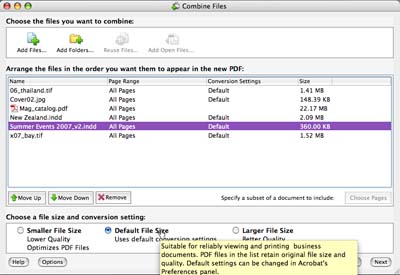
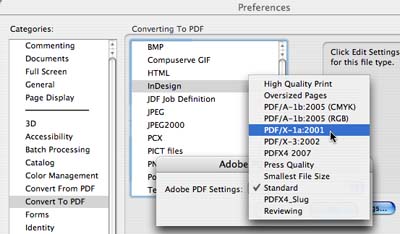
There are three choices for file size and conversion settings at the bottom of the dialog. Two choices, Smaller File Size and Larger File Size, either create smaller or larger files, but give you little control. My advice is to choose the Default File Size option. Then (as the tooltip above describes) use Acrobat’s Convert to PDF preferences to choose the PDF preset to use for file conversions to PDF. In that dialog box, you can choose the PDF preset you need for each file type. (For more information about the different PDF presets options, see my posting on this topic.)
When finished making up your list of files, click the Next button at the bottom right. This then takes you to your two choices for assembling the PDF files. The first is the method used by Acrobat 7 Professional: The Merge Files into a Single PDF option creates one PDF file including the files you selected, in the order you selected them. Remember that, unlike InDesign without a special plug-in, PDF files can include different page sizes in the same PDF document.

The more interesting choice is the second option – Assemble Files into a PDF Package. This creates a file that acts like a single PDF, but actually maintains the files separately within the PDF package. One advantage of this for print service providers is you could include PDF/X files in a package, and maintain their complaince with the standard. We could also include a digitally signed document in a package to retain its integrity, but that wouldn’t work with the Merge feature. You can also choose a PDF to use as a cover sheet, or use a default cover sheet. We’ll choose this option, and click Create.

You’ll see the progress as your PDF package is being assembled, and files which create errors are shown. When finished, you can save the assembled package as a new PDF file. When you look at the package, you’ll see a list of the included PDFs in the package either on the left side or the top of the screen. You can view the included files, add or delete files from the package after it’s created, or choose which to print, among many choices. You can even drag and drop the PDF files into and out of the package.

PDF packages can be viewed in Acrobat 8 Professional or the free Adobe Reader 8. You can also access the individual files in a package in Acrobat 7 or Reader 7, but they appear differently: Only the first PDF in the package appears, but additional PDFs are found at attachments in the Attachments navigation tab.
This article was last modified on December 18, 2021
This article was first published on June 10, 2007
Commenting is easier and faster when you're logged in!

Recommended for you

Customizing a Preflight Profile
The key to making Live Preflight useful for your production workflow is to creat...
Learn InDesign One Feature at a Time
There's no way to learn InDesign all at once, but you can learn it little by lit...
Copying/Pasting Text from PDFs to InDesign
The other day I needed to copy a paragraph of text from a client-supplied PDF in...