



Whenever I’m teaching InDesign to Mac users, I always ask them early on, “How many of you are using two-button mice?” And except for a few memorable bright spots in my career, the typical response is always depressingly, frustratingly the same: Hardly anyone.
Last week, during a series of training sessions at a magazine publisher, only five out of the total 37 designers during the week raised their hand to signal “yes” in response to my question. Their IT manager was sitting in the back during one of the sessions, doing something on her PC laptop, and her jaw dropped. She couldn’t believe that all these professionals, with high-end computers and an average of a dozen years of layout experience each, were blithely working with a mouse that hadn’t advanced since 1995.
“But … but I thought the new Macs we bought you last year came with two-button mice,” she interrupted, perplexed. Well, yes, but she didn’t realize that Apple sets both of the buttons in the slab-like Mighty Mouse to act the same, as the “primary,” or left-click button, by default. Why? Because Apple thinks Mac users are babies, fragile nincompoops who don’t have the manual dexterity or brain power to figure out how to use more than one button.
Are you a Mighty Mouse user with a one-button wonder? You can fix this right now by going to System Preferences > Keyboard and Mouse, and choosing Right-Click – aka Secondary Button – for the action performed by your mouse’s “other” button. Now, pressing anywhere on the mouse’s top-right surface will elicit that action.
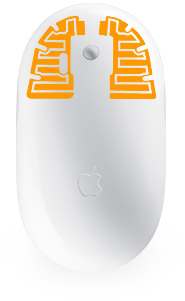 Don’t worry that there’s no obvious, visible division for the two buttons in this mouse model as there are for all other ones on the planet. Its hidden sensors understand the difference between pressing on one side vs. the other, as seen by this illustration.
If you don’t have a Mighty Mouse and you truly are using a one-button mouse, please, for your own sake, go to Target or Walgreen’s on your lunch break and cough up $12.00 for a generic USB two-button mouse. They sell them by the camera batteries. You don’t need any extra software, and it’s okay if it says it’s for Windows, USB mice work on either platform. Later on, after you discover how much faster you are in InDesign (and everywhere, basically, in the Mac OS) you can get yourself a fancy ergonomic model with more buttons and ding-dongs than an Airbus A-380 cockpit.
Why I’m Ranting
When you’re using a one-button mouse, you’re missing out on a hugely important, productivity-enhancing feature in InDesign that your PC-using colleagues take for granted, yet one that’s been a part of the Mac OS and most of its apps for over ten years: the contextual menu.
Yes, Mac users can always Control-click to view the context menu, but how often do you do that? Your other hand might be occupied by holding a phone, or a beer. Even if it’s not doing anything, it’s bothersome to get that non-dominant hand to the keyboard and hold down the Control key while you click, so one-buttoners tend to only do it when they’re really motivated, if at all.
With a two-button mouse, you can get to the context menus with a twitch to your middle finger instead of your index finger. It’s as easy as blinking. So simple! And such a wondrous treasure of choices that appear, virtually anywhere you right-click!
You’ll quickly learn what the rest of us have known for years: In InDesign (and of course every other program and the Finder, but I’ll focus on InDesign) there’s seldom a need traverse the menus – the main menu bar or the palette/panel menus – since the command you want is literally at your fingertips in the contextual menu.
Right-click on a text frame to get to Text Frame Options, run a Find/Change, check spelling, or insert a special character via any of the Type menu’s Insert fly-out menus. Right-click on an imported image to choose a Fitting command, change its Display Performance, Lock its position, apply an Effect, turn it into a Button, or change its stacking order. Right-click anywhere in a table to find the special table Select, Add, Delete, and Convert commands.
These context menus are all over the InDesign interface. Right-click on a layer to select all the items on that layer. Right-click on a Paragraph style to find the elusive “Apply Next Style” command. Right-click on a Swatch to delete it, duplicate it, or create a new one. Right-click on the rulers to change the measurement units. Right-click on a page in the Pages panel to start a new section or override all its master page items. You can even right-click over nothing in particular to zoom in and out or hide/show your guides.
In CS3, you can even customize the context menus (Edit > Menus > Category: Context and Panel Menus) to hide choices you never use and colorize the ones you use a lot.
“But I’m All Thumbs”
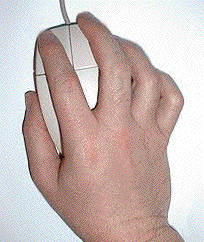
It is a trivial task, taking no more than a few minutes, to get used to a two-button mouse. Rest your hand on the mouse with your first two fingers slightly spread apart on its top in a “V for Victory” arrangement. Your thumb is on the side of the mouse, touching the desktop, and your ring and little fingers are on the other side of the mouse, their tips resting lightly on the desktop. Here’s a old picture I found on a “how to use a mouse” page on the web (amazing how many of these dusty tutorials are still around):
Teach your index finger that clicking on its side of the mouse acts “normally,” as the primary button, selecting things or opening menus and such. Just work like that for a while, teaching your index finger to stay on its own side, and your middle finger not to press down (raise it up a bit if you want) when the index finger does. You’re pretending that there’s only one way to use the mouse, with the index finger on its “half” of the mouse. But keep your middle finger on top of the mouse, not on the other side as you did with the one-button mouse, whenever you move the mouse around.
Once that’s working out for you, teach your middle finger that clicking on its side of the mouse (the secondary button) reveals your new best friend, the context menu. Move your mouse where you want it, then get your middle finger to press down all by itself, with no help from the index finger. Voila! A context menu.
Do that a few dozen times, and soon your mouse muscles will memorize what they’re supposed to do. If you feel more comfortable with your middle finger on the outside side of the mouse, no problem. Just make sure the index finder stays on its side of the mouse when clicking. When you want to open a context menu, your middle finger will move up and find the button without you thinking about it.
I’m trying not use the term “right-clicking” because the Secondary button doesn’t have to be on the right. You can use the Mac (or Windows) mouse configuration settings to make either button act as the Primary and the other as the Secondary.

Because I frequently switch from left-handed to right-handed mice (something I had to teach myself long ago to ward off carpal tunnel problems), I set it up so that my index finger is always the Primary button finger, regardless of which hand I’m using, and I don’t have to think about it.
Windows Got it Right
Mac users can crow all they want about the superiority of their platform (and I’m often one of the crow-ers), but using two-button mice from the start was one thing that Microsoft got right. Apple realized this years ago; even System 9 had context menus that two-button mice could access.
So please, Mac users, take the blinders off. There is no reason to go one day longer hobbled by a half-functional mouse! And you’ll be amazed at how much easier and faster it is to use InDesign, once the context menus are only a twitch away.
This article was last modified on December 18, 2021
This article was first published on May 21, 2007
Commenting is easier and faster when you're logged in!

Recommended for you

This Week in InDesign Articles, Number 19
Oh, there's a whole lot o' goodies in today's issue... scripts, articles, and gr...
Stop the Transparencide
I'm terribly upset about a tragic situation that I've recently learned about. I...
HELP! New Ways to Find It in CS3
Everyone needs help sometimes. InDesign CS3 and the CS3 applications now give yo...