




Okay, you’ve been asked to provide your InDesign layout as an EPS file and with all the text converted to outlines. I’m going to ignore the fact that I think this is crazy and that people should neither be exporting EPS files nor converting text to outlines. Instead, I’m just going to assume that you have no choice or that you’re stuck in your ways, and you want to export an EPS with the text converted to outlines.
Please, please do not choose Type > Create Outlines. And please do not export a PDF or EPS and open it in some other program (such as Illustrator) and convert it there. Instead, follow these simple steps:
1. Create a Transparency Flattener Preset
Choose Edit > Transparency Flattener Preset, click the High Resolution preset, and click New.
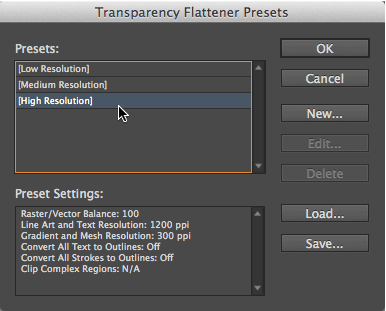
Now give your preset a name and turn on the Convert All Text to Outlines checkbox.

Click OK, then OK again to save your preset.
2. Add Something Transparent
If you don’t already have something transparent on your page or spread (such as a Photoshop image with transparency), then add something. The easiest way to do this is make a tiny gray or black frame, put it near the edge of the page (it must be touching even if only a tiny bit), and set the Opacity to 0.1% in the Effects panel.
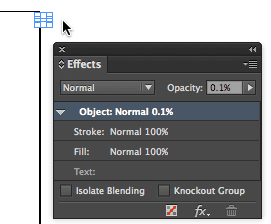
If you have a bunch of pages, then put this on a master page so that it shows up on all the pages.
3. Export Your EPS
The EPS file format always forces your document through the “transparency flattener,” and you can choose which flattener preset to use in the Advanced tab of the Export EPS dialog box… choose the “convert to outlines” preset you just made:

That’s it, you’re done! Here’s the original image in InDesign:
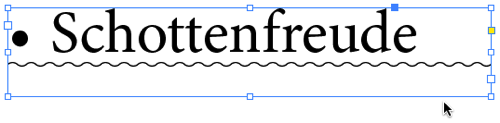
and here it is, EPS opened in Illustrator just to prove that everything is converted to outlines without me doing anything:
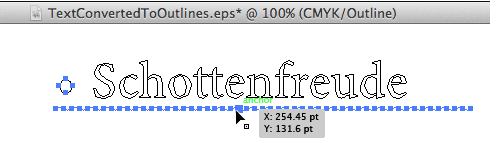
Reasons
Here’s why you should do this:
- When you use Create Outlines in InDesign, you’ll lose your paragraph rules, bullets, and other “extra” elements. This method keeps all that, so you lose nothing.
- Exporting to some other format (like PDF) and then opening and converting to outlines in some other program (such as Illustrator) may work, but it may also introduce changes to your file. This method ensures that the result is exactly what you created in InDesign.
- The text in your InDesign document is still editable, even after you export! You know you’re going to have to make an edit sooner or later; this technique keeps everything “live” so you can quickly change the file and export again.
By the way, this also works when exporting PDF files, as long as you’re using the Acrobat 4 setting.
I hope that helps!
This article was last modified on July 20, 2021
This article was first published on April 28, 2014
Commenting is easier and faster when you're logged in!

Recommended for you

Barcodes in InDesign
Everyone needs to make a barcode sooner or later! Here are some tools to make th...

Converting Shapes
Did you ever need to change the shape of an existing object in your layout?...

TIFF vs PSD vs EPS vs PDF vs…
What file format should you use when using InDesign? Which ones to avoid?