



In a comment on another post, BT wrote:
I am revising someone’s layout. Hundreds of paragraphs were started with a tab. I want to remove the tab and apply a style that indents the first line.
This is an excellent question, because while it’s easy to search for tabs and delete them, and it’s easy to search for tabs and apply formatting to the paragraph (using the tricks in that blog post linked above), it’s not obvious how to to do both of these at the same time. And, in fact, it’s not possible in a single step using the normal Text mode of the Find Change dialog box.
You can do it in two steps: Search for a tab and apply the paragraph style, then search for tabs and delete them. But to do it in a single step, I believe you need to use the GREP tab. (Don’t worry; it’s a really easy one!)
Type this into the Find What field: ^(.) and type this in to the Change To field: $1
Then set the Change Format field to apply the paragraph style.
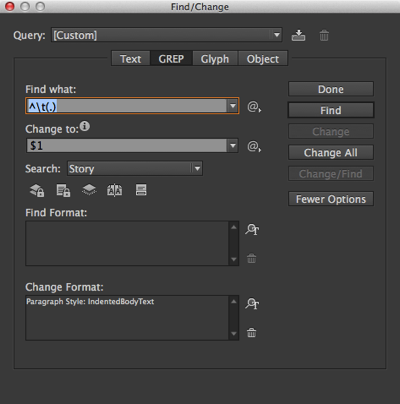
That GREP expression means “find a tab at the beginning of the paragraph, followed by any single character, and remember what that character is.” The change-to expression just means “put that single character back in.”
Hit Change All, and you’re good to go! If you’re going to use it regularly, remember to click the Save Query button at the top of the find/change dialog box, so you can choose it again quickly.
This article was last modified on December 30, 2021
This article was first published on February 9, 2014
Commenting is easier and faster when you're logged in!

Recommended for you

Make a Knockout Black that Does Not Overprint
Sometimes you want to use a black that knocks out color beneath it instead of ov...

Using AI to Write Scripts
How to use ChatGPT or Copilot to write custom scripts for your Adobe apps

Impostrip Card Stacker
Ultimate Technographics Inc, https://www.imposition.com/, the leading imposition...