




I was playing around with the Font menu inside the Control panel and accidentally discovered something… perhaps everyone knows this already, but hey, check it out… If you hover your cursor over a font in the list, that font becomes highlighted, right? But here’s the cool part: If you press either Command or Option (that’s Ctrl or Alt in Windows-speak) InDesign actually applies that font to any text you have selected on your page! You don’t have to click the font, just press the shortcut:
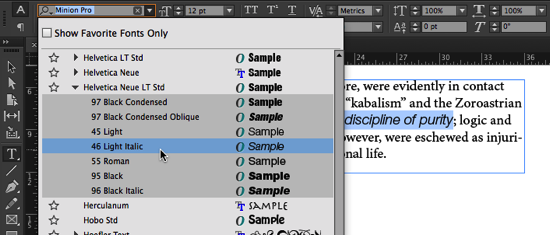
Then, if you don’t like that font, you can:
- Hover over a different font and press one of those keys again to test it out.
- Press the up or down arrows on your keyboard to move up or down the font list, applying each font one at a time.
- Press Esc to cancel out of the menu and return to the original font!
Then, when you find a font you do like, you can press Enter/Return, or actually click on the font in the list.
(By the way, as far as I can tell, this only applies to InDesign CC.)
Of course, remember that you can apply the font to all the text inside an unthreaded text frame by selecting it with the Selection tool, switching to the Type tool (press T), and then using the font menu in the Control panel.
This article was last modified on December 30, 2021
This article was first published on December 31, 2013
Commenting is easier and faster when you're logged in!

Recommended for you

Nashville in Focus: CreativePro Week 2026 Photo Walks
A look at Music City through the lenses of the CreativePro community

Making Tables Accessible
Learn how to correctly tag complex PDF table headers for screen readers with Dax...

Using 3D in Affinity
Create rotatable 3D objects using Affinity and Canva AI with Steve Caplin.