




One of the best features in Acrobat Pro 9 is its Form Wizard (Forms > Start Wizard). You create a static form in InDesign, export it to PDF, open the PDF in Acro and tell the Wizard to have at it. Acrobat automatically converts the boxes, lines, and circles it detects in the active PDF into interactive form fields like checkboxes, text fields, and radio buttons, and steps you through final tweaks. Ubercool.
The problem is that?alas?it’s just software, and not an actual wizard (you LIE, Adobe!) so sometimes the Forms Wizard misses or misclassifies some of the form elements you created in InDesign. Acrobat might consider the fields that you meant to be “Name,” “Title,” and “Company” to be just pretty lines and completely ignore them; or labels the first field Title, the second one Company, and the third one Shoe Size.
What’s needed here is a cheat sheet?what’s the best way to create a checkbox, for example, in InDesign so that Acrobat’s auto form field recognition knows it’s a checkbox type of form field and not a simple graphic element? Where should you put your field labels so the program knows which label belongs to which field?
Adobe’s Lori DeFurio to the rescue! Check out this partial screen shot from the tutorial she just posted:
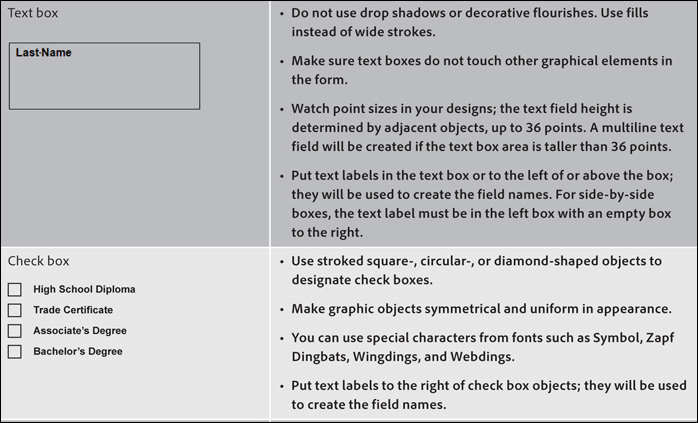
Lori is an Acrobat evangelist for Adobe, and really knows what it’s like for us end users and designers who are trying to get other Creative Suite program’s files to play nice with Acrobat.
Here’s that link to the tutorial again: Designing Forms for Auto Field Detection in Adobe Acrobat.
This article was last modified on December 20, 2021
This article was first published on February 18, 2010
Commenting is easier and faster when you're logged in!

Recommended for you

Kerntiff MoreInfo
Much of my workflow involves obscure, little understood technical features of In...
Understand the Current Limitations of CC Libraries
In the February 2015 release of InDesign CC 2014, a new kind of library panel wa...
What’s New With InDesign CC 2015.2
Adobe has released updates to several important Creative Cloud applications, inc...