


Quick Tips for Acrobat 7



Using the Pan and Zoom Window in Acrobat 7
If you need to “put things in perspective” with your PDF documents, a neat solution can be to use Acrobat’s Pan and Zoom Window. The Pan & Zoom Window provides a small thumbnail view of your current page with basic navigability and zoom control. The main window is unaffected, however, so you are free to keep navigating and/or editing the PDF in Acrobat’s main window while the Pan and Zoom Window provides a bird’s-eye overview. All of this makes it a great way to preview page layouts.
Here’s how to use Acrobat’s Pan & Zoom Window:
Select Tools > View > Pan & Zoom Window (Windows) or Tools > Zoom > Pan & Zoom Window (Mac). The thumbnail that appears shows the page you are currently working (see Figure 1). Move the red highlight box within the thumbnail screen to navigate around your PDF document.
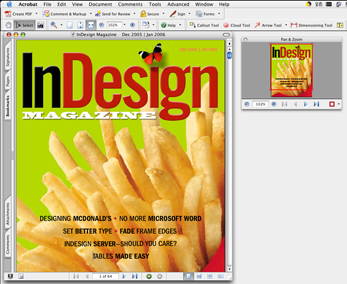
Figure 1. Navigate faster with Acrobat’s Pan and Zoom Window.
Keyboard Navigation in Acrobat 7
Even the quickest precision mouse users can save time with keyboard shortcuts. The ability to navigate PDF documents using only a keyboard also has the added bonus of being crucial when you go to a client and remember your laptop but forget your mouse! Here are several navigational keystrokes:
- Up arrow: Scrolls forwards.
- Down arrow: Scrolls backwards.
- Page Up: Jumps forwards the length of a screen.
- Page Down: Jumps backwards the length of a screen.
- Left arrow: Jumps to the next page.
- Right arrow: Jumps to the previous page.
- Home: Jumps to the start of the document.
- End: Jumps to the end of the document.
- Tab: Jumps to the next interactive element (e.g. hyperlink, form field, annotation).
- Shift + Tab: Jumps to the previous interactive element.
- Control + Shift + H: Toggles automatic scrolling.
- ‘-‘ key (while automatically scrolling): Changes the direction of automatic scrolling.
Highlighting Important PDF Elements
When you are reading through a document for research in the hard-copy world, you generally make a copy that you can annotate, to highlight important passages and make your own comments in the margins. Similarly, if you have a contract or other document whose content you need to review, you might want to highlight or underline key phrases to make comments about their wording. How does this translate into a PDF-driven electronic workflow?
In Acrobat — or even Reader in specially-enabled documents — it’s a cinch to highlight, underline or strike-out text. The Highlighter, Underline and Cross-Out Tools can be accessed in the following ways:
- Select Comments > Commenting Tools > Highlighting, then select the desired tool.
- U activates the highlighting tool button and Shift + U cycles through the various highlighting options.
Once you’ve selected the appropriate tool, simply drag the mouse to select the appropriate text and Acrobat will do the rest!
Note: The keyboard shortcuts assume that single-key accelerators are active. If you are unsure, select Edit > Preferences > General, and ensure that the ‘Use single-key accelerators to access tools’ option is checked.
This article was last modified on January 6, 2006
This article was first published on January 6, 2006
Commenting is easier and faster when you're logged in!

Recommended for you
InDesign Template: Data Merge
Includes four templates built to work with InDesign’s Data Merge features. There...
How to Split Alternate Layouts to Individual Files in InDesign
Learn how to split alternate layouts in an InDesign file out to separate files u...
Heavy Metal Madness: Back to School Blues and Yellows
Are there any three words more dreaded by American youths than “back to sc...