


Photoshop How-To: Curved Type Reflections


This story brought to you by the National Association of Photoshop Professionals (NAPP). Copyright © 2005 KW Media Group. Photoshop is a registered trademark of Adobe Systems, Inc.
Some days I’m overjoyed that I don’t know everything. What a burden that would be, not to mention extremely boring. I get quite a bit of email from readers here or visitors to my website about how certain effects are created, and usually I can nail it pretty close. Occasionally one comes in that I hadn’t thought of before, and as a result I am able to dive into Photoshop once again with my sense of discovery intact. It is even more fulfilling when I actually solve the problem, so please keep the questions coming!
One such question came in yesterday concerning curved type reflected off a surface. Once I wrapped my brain around it the answer was/is very simple, so we’ll tackle it here.
- Create a new image. Fill the background with Black, and create a new layer.
- Select the Type Tool. Using a large font with the color set to white/light gray, type your text.

- Create a copy of the type layer by dragging the layer to the new layer icon on the bottom of the layers palette.
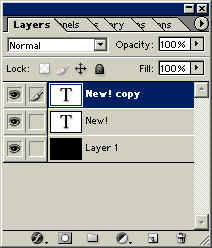
- Decide which type layer is going to be the reflection. Select that layer, and go to Edit>Transform>Flip Vertical.


- Move the reflection down so it is separated from the type.

- Select the ‘upright’ type layer. Click on the Type Tool again, and in the Type Options Bar click on the ‘Create Warped Text’ icon.


- In the Warped Text dialogue box that pops up, click the menu icon and select ARCH. Enter a Horizontal Bend setting of –10.


- Select the Type layer to be used as a reflection. Again, click the Warp Text Icon and select ARCH, but this time enter a Horizontal Bend of +10. Click ‘OK’.



- Try applying the same layer style ( pick one, any one) to both type layers.

- Drop the opacity of the reflection type to 40-45%.


That’s about it… nice and easy! Take care, and I’ll see you at Action Fx.
This story brought to you by the National Association of Photoshop Professionals (NAPP). Copyright © 2005 KW Media Group. Photoshop is a registered trademark of Adobe Systems, Inc.
This article was last modified on January 3, 2023
This article was first published on February 4, 2005
Commenting is easier and faster when you're logged in!

Recommended for you
Crafting Chromatically Rich and Luminous Images
“If all the world’s a stage, I want better lighting.” I couldn’t agree more with...

Photoshop New Features Guide Updated
Earlier this year, I wrote about a great resource for Photoshop users, the Photo...

How to Create a Burnt Paper Effect in Photoshop
Creating a burnt paper effect in Photoshop is much easier than you might think....