




Imagine you want four columns of text on a page, and want to do this with 4 threaded text frames. You can do this a slow, painful way, or a quick, painless way…your choice!
The slow way:
Create a single text frame. Click on the “out port” at the bottom-right corner of the text frame, and then drag out a second frame with the loaded text cursor. Repeat this for frames 3 and 4. Then, fiddle endlessly with alignment and spacing to get the frames spaced apart with the desired gutter.
The fast way (CS5 or newer):
1. Select the Type tool, and drag out a large text frame. Do not let go of the mouse button.
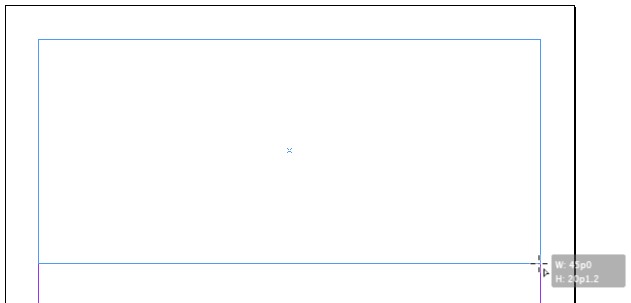
Create a text frame that is the total width of all 4 text frames.
2. While dragging, press the right arrow (cursor) key 3 times. You will see the frame divide into 4 equal frames, evenly spaced, with equal gutters. If desired, press command-left/right arrow (Mac) or ctrl-left/right arrow (Windows) to adjust the gutter size.
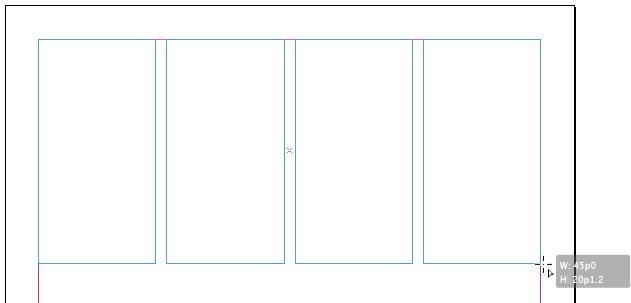
Pressing the right and left arrow keys will subdivide the single text frame into 4 frames.
3. When you let go of the mouse, the result will be 4 perfectly even frames, equally sized and spaced, and threaded together!
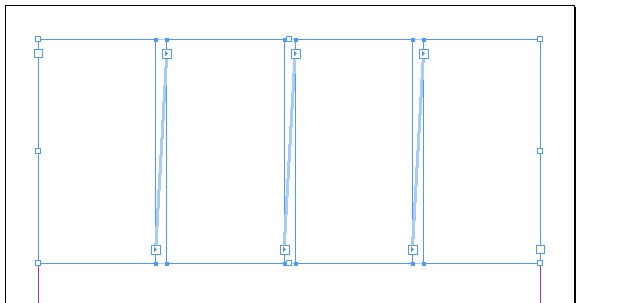
Voila! 4 perfect, threaded text frames.
One variation on this technique: if you do not want the resulting frames to be threaded together, just hold down the option/alt key before you release the mouse button.
This article was last modified on December 30, 2021
This article was first published on July 3, 2013
Commenting is easier and faster when you're logged in!

Recommended for you

Tip of the Week: A Shortcut for Accessing Grid Preferences
The fastest way to open the Grid preferences dialog box in InDesign, so you can...
InQuestion: Placing an Image Into a Grid
Q: I’d like to place an image into my layout and have it look as though it’s bei...

InDesign How-to: Make a Mondrian-inspired Grid
Learn how to make your own modern art masterpiece with the Gap tool, the Pathfin...