




In my recent postings on creating buttons in interactive PDF, I gave some tips on creating buttons. A question on the Adobe InDesign Forum reminded me of another.
I have been tasked to produce a product that will consist of a interactive map of sorts in a PDF format. The map will consist of about 80 locations (marked with a small circle and the city name) with contact information for particular individuals. My plan was to have a mouseover/hover text pop up containing the contact information when the mouse is over the circle/city name. If anyone could help me figure this out it would save me an immense amount of time.
This is pretty easy to do in InDesign, but the method isn’t obvious. It requires creating two separate buttons?one for the object to be shown and hidden, and one for the button which triggers the show/hide effect.
I’ll first illustrate this in InDesign CS4, which has a more elegant interface for creating buttons:
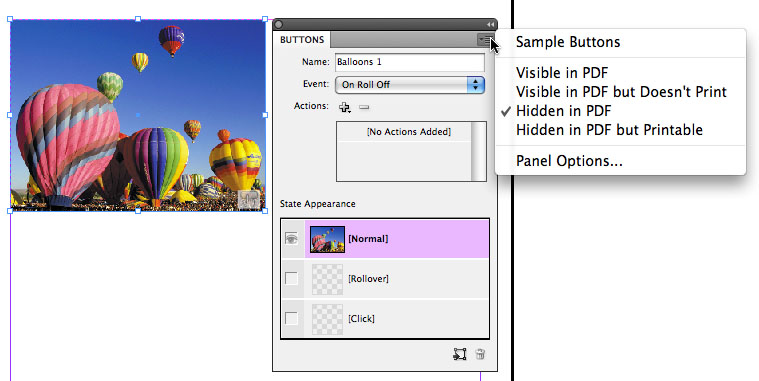
1. Turn the object to be shown/hidden into a button using the Buttons panel. (I chose an image of a balloon festival and chose Object > Interactive > Convert to Button.) This button should have no action, but choose Hidden in PDF as a property from the panel menu.
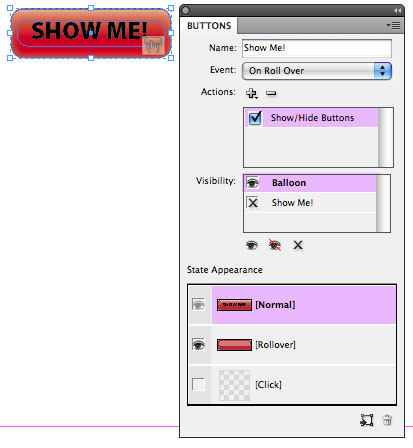
2. Create the trigger button. (I selected one of the buttons from InDesign CS4’s Sample Buttons library, and added some text.) For the Event called On Roll Over, click the + button beside Actions to add an action. Choose the Show/Hide Buttons action. Set the visibility of the show/hide button (the balloons) by choosing the eyeball icon to indicate that it’s visible on roll over.
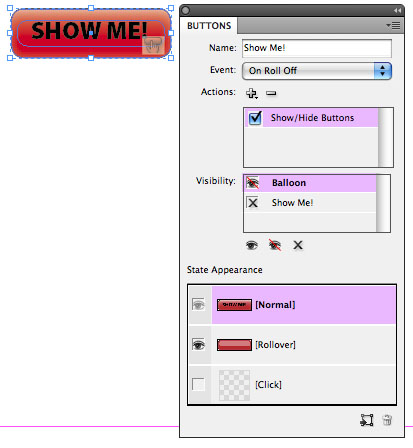
3. For the same button, choose the Off Roll Over event. Again, choose the Show/Hide Buttons action. Set the visibility of the show/hide button (the balloons) to the eyeball with the slash symbol (meaning hidden).
Export the PDF (remembering to turn on the Interactive Elements checkbox on the Export PDF dialog). Mousing over the trigger button shows the hidden button. Mousing off it hides it.

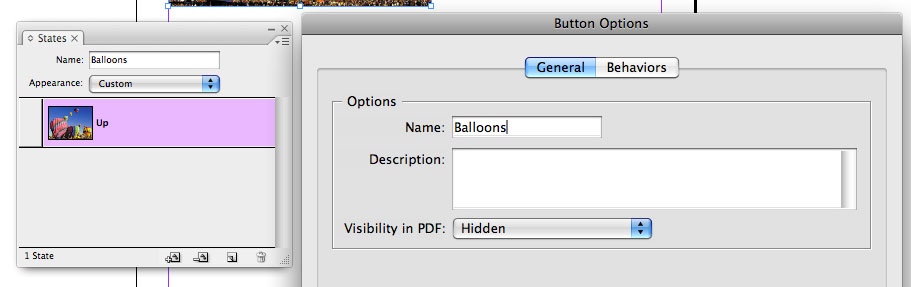
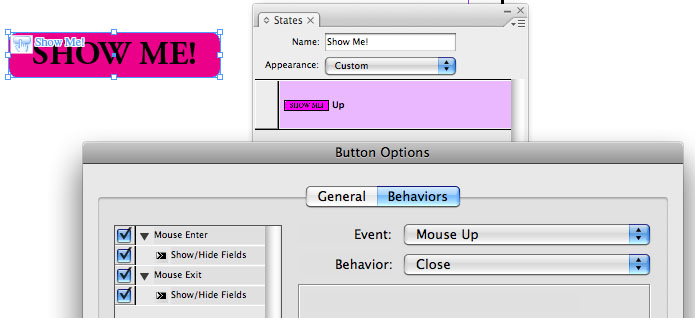
Working in InDesign CS, CS2 or CS3 works essentially the same. For details, refer to InDesign Help. In brief, you’ll create the same two buttons, and use the States panel to set the same properties. Here are what the choices in the dialog look like in InDesign CS3:
This article was last modified on December 19, 2021
This article was first published on August 18, 2009
Commenting is easier and faster when you're logged in!

Recommended for you
Interview with Joy Pollard, Designer and Adobe Certified Professional
Learn how roller derby, astronomy, and theater influenced one designer’s journey...

Index Fixes: Multiple Indexes in an InDesign Document
InDesign documents can contain only one index. But when you need more than one i...

Closed Captioning in Premiere
Add captions to your Premiere video to ensure everyone benefits from its audio t...