




If you’ve ever designed with type in Photoshop, you’ve probably encountered a situation where changing the size or font caused the text to not fit on the canvas any more.
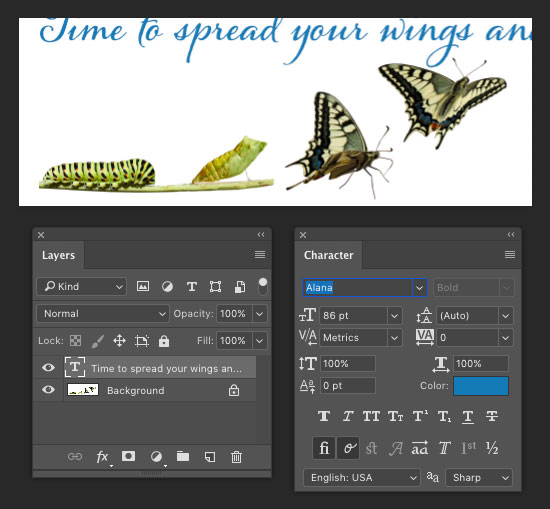
Most folks would use the Canvas Size command to, well, increase the canvas size. But that’s pretty tedious because you have to enter specific values for the width and height, and the anchor location.

Here’s a much easier way to deal with the problem of content not fitting on the canvas: use the Reveal All command. It’s found in the Image menu with the same group of commands as Canvas Size.

Just choose it, and the canvas is increased to fit the type (and any other content that extended past the edge of the canvas).

Need to shrink the canvas quickly to fit your content? Then use the Trim command, also located in the Image menu. Note that unlike Reveal All, Trim gives you a dialog box with options for resizing the canvas.

This article was last modified on March 12, 2022
This article was first published on September 14, 2017
Commenting is easier and faster when you're logged in!

Recommended for you

How to Adjust Colors in Photoshop Using Hue and Saturation
Learn how to manipulate an image’s colors using Photoshop’s Hue and Saturation s...

Using Photoshop’s Generative Fill to Remove Objects
Learn how to simply remove items from an image in Photoshop, without extra conte...
How to Turn a Photo into Graffiti in Photoshop
Create a spray-painted masterpiece in Photoshop with Steve Caplin.