




This CreativePro Tip of the Week on Increasing the Photoshop Canvas Size with the Crop Tool was sent to CreativeProse email subscribers on July 26, 2017.
Sign up now and every week you’ll get a new tip, plus roundups of new articles, and exclusive deals sent right to your Inbox!
Just scroll down to the bottom of this page, enter your email address, and click Submit! We’ll take care of the rest. Now, on with the tip!
Want to quickly add to the Photoshop canvas size while keeping the current image centered in the expanded area? This is a great job for the Crop tool.
Take the Crop tool (C), hold Option or Alt, and drag out from a corner. The dimensions of the new canvas will be displayed at your cursor.
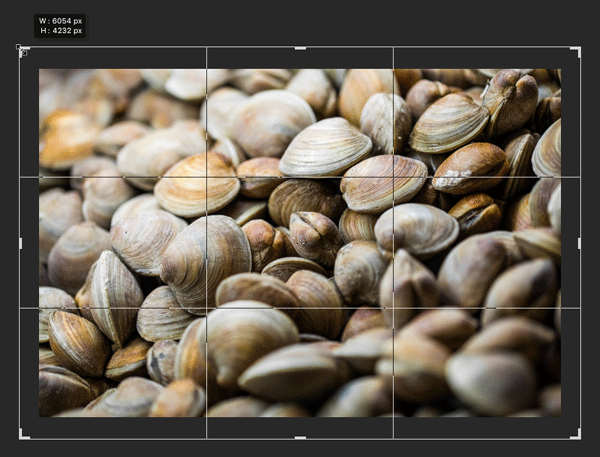
Add the Shift key if you want to constrain the shape of the canvas to its current proportions.
You can also drag from one of the sides to just increase the size of the canvas vertically or horizontally.


If you have the option to Delete Cropped Pixels turned on in the Options bar, then the new area will be filled with the background color. Otherwise, the new area will be transparent.


This article was last modified on August 21, 2017
This article was first published on August 21, 2017
Commenting is easier and faster when you're logged in!

Recommended for you

InDesign Tip: Making Custom Motion Paths for Animation
One of the coolest ways to customize animations in InDesign is to use any path i...

Combining Custom Distortions with Image Warp in Photoshop
Photoshop’s Image Warp tool is great for bending layers into any shape. Of...

The Digital Art Studio: Recoloring a Scan with Illustrator
How to recolor Illustrator images with a new color palette—and do it quickly.