




This CreativePro Tip of the Week on creating dotted lines in Photoshop was sent to CreativeProse email subscribers on June 7, 2017.
Sign up now and every week you’ll get a new tip, plus roundups of new articles, and exclusive deals sent right to your Inbox!
Just scroll down to the bottom of this page, enter your email address, and click Submit! We’ll take care of the rest. Now, on with the tip!
Ever want to make a dotted line in Photoshop? It’s very easy! Here’s how:
1. Open the Brushes panel
2. Select a round brush
3. Set the Size to how big you want the dots to be.
4. Make sure the Roundness and Hardness are both 100% (Unless you want flattened or feathered dots. Which is fine. I’m not here to judge. You do what you gotta do.)
5. Set the spacing value to space out the dots. A Spacing value of 100% will make the dots just touch each other. 200% will put a space the width of one dot between the dots, etc.
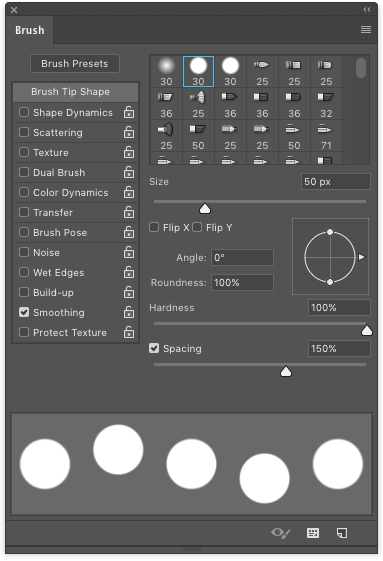
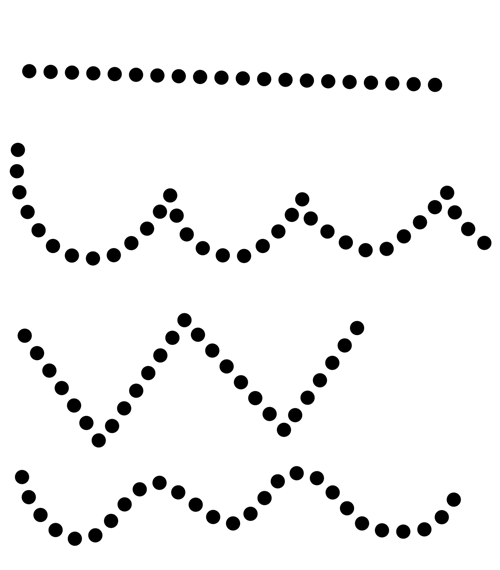
6. Brush away to make dotted lines. Shift-click to draw straight lines.
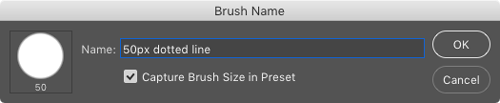
If you expect to re-use your dotted line settings save them as a brush preset. That way you don’t have to keep reinventing the dot, er, wheel, each time you need this effect.
This article was last modified on June 12, 2017
This article was first published on June 12, 2017
Commenting is easier and faster when you're logged in!

Recommended for you

Creating Latte Art With Pixelmator
As a Photoshop user, you’re no doubt used to being asked to perform the im...

Heavy Metal Madness: The Family that Boats Together…
When I was four or five, my father decided to build a small speedboat in his gar...

Design How-To: Cropping Photos for Impact
Every designer at one point in time has to work with a lackluster image — a head...