




This CreativePro Tip of the Week for using resource libraries in Illustrator was sent to CreativeProse email subscribers on May 17, 2017.
Sign up now and every week you’ll get a new tip, plus roundups of new articles, and exclusive deals sent right to your Inbox!
Just scroll down to the bottom of this page, enter your email address, and click Submit! We’ll take care of the rest. Now, on with the tip!
Adobe Illustrator offers a wealth of resources for creating great artwork, in the form of libraries of color swatches, brushes, symbols, graphic styles. These are not to be confused with Creative Cloud libraries, which you populate with your own graphics, colors, etc. You can access resource libraries from the various panels, by clicking on the button to access the panel’s library menu.

When you select a library, it opens in a new panel. Use the left and right arrow buttons on the library panel to navigate through the various libraries.
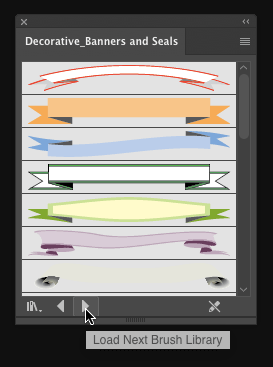
By default, when you quit and restart Illustrator, the library panel will be closed, but you can force it to stay open by going to the panel menu and choosing Persistent.

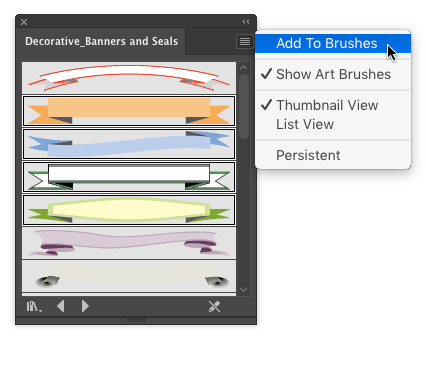
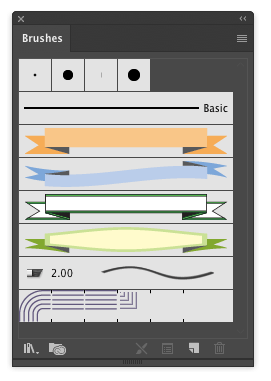
You can also add specific resources to the Swatches, Brushes, Symbols, and Graphic Styles panels, by selecting them and choosing Add from the panel menu.
This article was last modified on May 22, 2017
This article was first published on May 22, 2017
Commenting is easier and faster when you're logged in!

Recommended for you

Photoshop Blur Gallery: Path Blur
Editor’s Note: Don’t miss the first article in the Photoshop Blur Ga...

Design How-To: Cropping Photos for Impact
Every designer at one point in time has to work with a lackluster image — a head...

Making an Image Out of Words With Photoshop
If you’ve got a message, you could just set it as text. Or you could get c...