




I was helping a designer diagnose why InDesign kept treating some of his editor’s Word styles as local formatting instead of true styles (as both the designer and the editor insisted they were), and I discovered something new. Worthy of a post!
The crux of the matter is a) How Word in general lets you know there’s local formatting; and b) How Macintosh Word (vX or 2004) and Windows Word (v2003, the latest) work quite differently in this regard.
In Word for Windows, local formatting feedback to the user is only shown in the Formatting toolbar: the Style field follows the pattern, “Style name + Local formatting.” (Like, “Normal + Italic”.) But in Word for the Mac, the Formatting toolbar never tells you if there’s local formatting in the selected text, it just shows the base style name. You have to open the Formatting palette (View > Formatting Palette) and twirl open its Styles panel to see the “Style name + Local” readout.
(By the way, Word on either platform doesn’t list out all the local formatting in a heavily customized selection, you have go to Format > Style and click the New button to see all the grimy details following the plus symbol.)
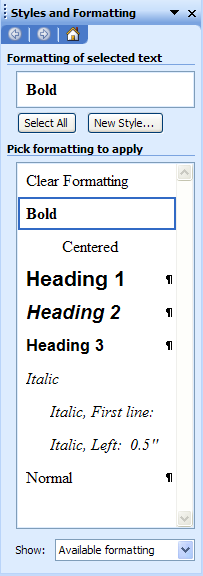 The Windows version of this same palette, which in Word 2003 is called the Styles and Formatting palette (left), gives the user a third type of feedback: the readout shows either the Style name or the local formatting – not both – at the cursor’s location. It’ll show just the Style name if there’s no local formatting where the cursor is (even if the rest of the paragraph has local formatting); OR the palette tells you just the local formatting information, not the underlying paragraph or character style, if the cursor is in locally-formatted text.
That leads us to the worst part. In Word for Windows, when you make a word bold, “Bold” gets added to the list of “styles” in this palette! If you click inside a bolded word (locally-formatted bold), the Bold entry highlights just as though it was a Character style.
Similarly, if you apply a first-line indent to a paragraph styled with Normal, and then make the entire paragraph italic, Word adds “Italic, First Line: 0.5″” to the list of styles. And so on.
Every time you do some local formatting, Word adds it to the list and automatically links it to the text. You can select other text elsewhere in the document and click on these palette entries to apply the formatting, just like a style. You can see why editors would think they’re using styles, just as you asked them.
Quasi-Styles
If you look closely, you’ll see the palette is technically listing “formatting,” not styles. It just happens to include legitimate styles in the list, mixing them all together with local formatting specs (I’m calling them “quasi-styles”) to make life that much more enjoyable for everyone concerned.
Tell your Word users who are fans of this palette that quasi-styles lack a style icon (paragraph symbol for Paragraph styles, or lowercase “a” for Character styles) to the right of their names, indicating they’re not really a style. They’re local formatting, and depending on your workflow, that might be good or bad.
I found a well-done Word styles tutorial (for Windows users) at Microsoft.com, all browser-based with detailed close-up screen shots and easily-understandable explanations. I went through it myself and actually enjoyed it. I noticed that this tutorial is ranked 4 out of 5 stars by the 47,676 users who completed the tutorial and voted on it!
If you or your colleagues are having Word style fits, give the Word 2003: Formatting your document with styles tutorial a try.
This article was last modified on December 18, 2021
This article was first published on September 11, 2006
Commenting is easier and faster when you're logged in!

Recommended for you
TypeTalk: Titling Fonts and Titling Alternates
Learn how to use titling fonts and titling alternates to add personality and ele...
Applying Custom Designs to Illustrator Graphs
Learn how to improve Illustrator graphs with custom column designs and labeled d...

Enhance a Layout By Changing its Perspective
Version: 4, 4.1 Operating systems: Macintosh, Windows You’ve probably hear...