




An old student of mine named Mark e-mailed me yesterday, worried that the 2-color newsletter he just sent off to his commercial printer as a PDF would have the same problem as the prior issue he sent them: The 100% black elements, including all the text, had separated out to a mix of the four process colors.
Mark guessed that the cause was that he “had somehow changed the Preference setting for ‘Appearance of Black:'”

But actually, these settings only apply to on-screen previews (the first dropdown menu) or when you print or export to grayscale or RGB devices (the second dropdown menu) like black-only laser printers or inkjet printers. They have no effect on black-colored objects when you print to CMYK printers or export a layout to PDF.
After looking at the INDD (CS3) and PDF files Mark attached to the e-mail, Dr. Concepción diagnosed the culprit: The “Smallest File Size” PDF preset.
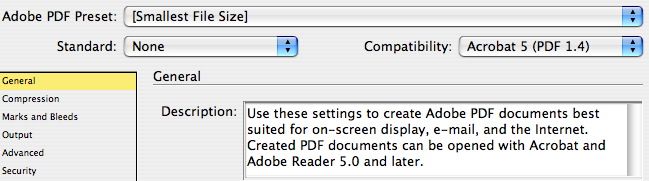
It turns out that Mark had wanted to reduce the size of the PDFs he was uploading to the printer’s FTP site, so he created a custom PDF Export Preset that was based on the Smallest File Size one that comes with InDesign. He tweaked it for commercial printing by including crop marks, bleed allowance, and changing the compression settings so images wouldn’t be downsampled so much.
What he forgot–and it would be nice if the Description field included this factoid–was that the Smallest File Size preset also converts all CMYK colors (and sometimes, spot colors in placed EPS files) to sRGB:
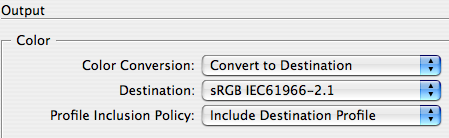
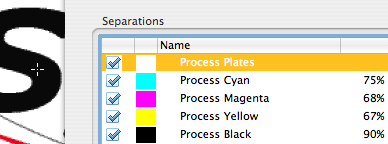
That means that 100% Black gets converted to an RGB mix in the PDF, and when the RGB black is sent to a CMYK device, it gets re-converted to something like C75 M68 Y67 K90.
I didn’t figure this out right off the bat, of course. But when I saw in Acrobat Pro that my export of his INDD file to PDF came out fine (a 2-color job, black and a spot color), while his PDF of the same INDD file was a 5-color job, I had to conclude there was something glitchy in his PDF Export settings.
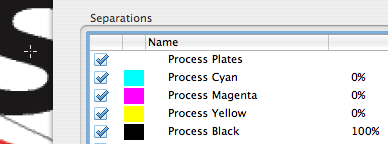
If you want to check your own PDFs for the same problem, open them up in Acrobat Pro 8 and choose Advanced > Print Production > Output Preview. Hover your cursor over something that should be 100% black (like where my cross-hair cursor is below, over the capital S) and look at the ink percentages next to the process plate names.
This PDF (exported using the Press-Ready or any PDF/X preset) is fine?Process Black is 100% and the other process colors are 0%:
Here’s the same file, exported with the Smallest File Size PDF preset:
Another “tell” that a PDF was exported with the Smallest File Size PDF preset is to click on the Show dropdown menu in this same Output Preview dialog box and change it from “All” to “RGB:”

If the INDD file was exported to PDF using the Press-Ready or PDF/X1-a PDF presets (and assuming everything else was set to default CMYK print settings in InDesign), all page elements should disappear as soon as you choose Show: RGB. If you still see text or images, then it’s likely the Smallest File Size preset, or one based upon it, was used instead.
I’m sure this is not the only cause for unwanted 4-color blacks in PDFs, but it feels like a little patch of quicksand in InDesign that you should know about!
This article was last modified on December 19, 2021
This article was first published on June 26, 2008
Commenting is easier and faster when you're logged in!

Recommended for you
Building Illustrator Templates
How to design a great template to take your project from setup to save in record...

Using Adobe Stock with InDesign
Back in June, Adobe launched a new service for Creative Cloud users, Adobe Stock...

CreativePro Conversations: The Design + AI Summit Community Partners Panel
Come learn how CreativePro’s Community Parters are using AI and other new tech t...