[Note: This post was updated in January 2017.]
What do you do when you have to fill out a printed form, and you want it to look “typed”? (Remember typewriters? Remember how easy it was to stick a form in them and type in your answers?! Sigh.)
This was the conundrum I was faced with recently when I needed to fill out some 1099 MISC forms for some people I had hired last year. I only had a few to fill out, and I use an old version of Quicken for my personal finances, which doesn’t print 1099 forms. (Some other accounting programs do, such as Quickbooks and MYOB, but that’s overkill for me.)
There are two good solutions to this problem:
- Find a PDF form that someone else has created which you can fill out and print from. I tried. Couldn’t find one. (But I’ll give you one at the end of this article.)
- Use InDesign.
Making the Form
I had the preprinted forms I needed to fill out, and I knew I could print on them with my desktop laser printer. The problem was putting the right information in the right place. InDesign is great at putting things in the right place, but you need to know where to put them.
The solution is to scan the form and place the image in InDesign. I use a Fujitsu ScanSnap to scan almost every kind of document these days, but any scanner will do. You could even take a photo with your phone and place that, as long as the image isn’t distorted.
When you place the form image in InDesign, align it to the page as well as you can, then put it on its own layer and lock the layer. Then create a new layer for your form objects.
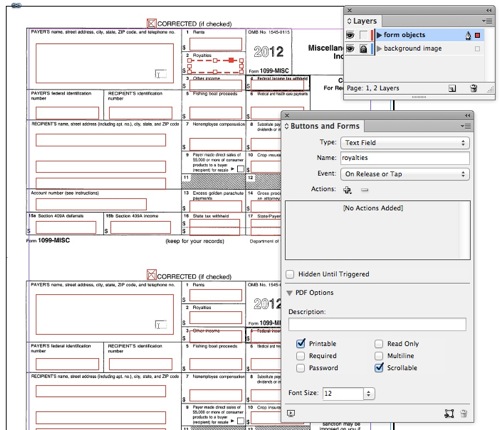
You have two options here: First, you could simply make text frames for each area on the form, fill them out, then print directly from InDesign. If you do that, be sure to hide the background image layer or set it to non-printing first.
However, the method I prefer is to make a generic PDF, then fill it in in Acrobat, and then print from there.
To do that, you want to use CS6. (Or, if you’re using an earlier version, you can get form fields with this trick.) I’m going to focus on doing it with the built-in tools.
In the image above, I’ve added text frames over each area and selected a form element from the Type pop-up menu in the Buttons and Forms panel. Most of the frames are Text Fields, but there are a couple of checkboxes, too.
Tips: For frames that need more than one line (such as the big name and address field), make sure you turn on the Multiline checkbox in the panel. Also, name your fields carefully, especially when you have a lot of them.
Bonus tip: If you have two or more fields in your document that need to have the same information (such as your name and address), name them exactly the same. That way, when you enter information in Acrobat in one place, they’ll update in all those other fields automatically.
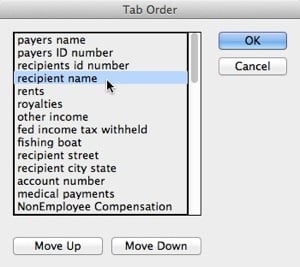
It’s also a good idea to set the tab order of the fields, so you can jump from one to the next with the Tab key in Acrobat (use Object > Interactive > Set Tab Order).
Make Your Own PDF
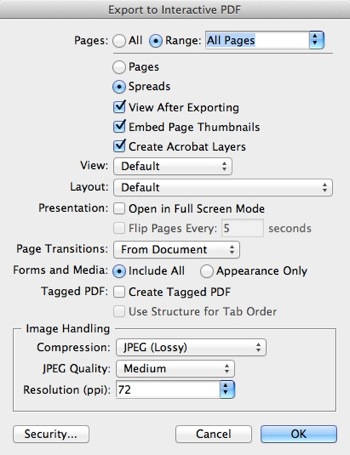
To make the form fields work in the PDF you need to export as PDF (Interactive), not PDF (print). Make sure you the Create Acrobat Layers checkbox:
When you open the file in Acrobat, the fields will be fillable! Unfortunately, if you print the PDF, the background appears, too. Apparently InDesign doesn’t make the background layer non-printable, so you have to set that yourself. To do that, open the Layers pane in Acrobat Pro, right-click the background layer, and choose Properties:

Next, in Layer Properties, set the Print pop-up menu to Never Prints:
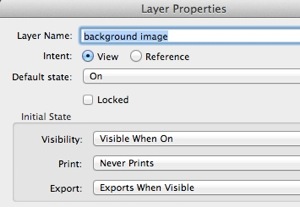
Finally, save the PDF, and make a backup. (I find that I’m forever messing up my “original” pdf forms, so it’s good to be able to get it back.)
You can fill out the form in Acrobat, put your form in your laser or inkjet printer, and print to it. However, when printing, be sure to turn off Page Scaling in Acrobat’s Print dialog box! Otherwise, your data will almost certainly mismatch your printed form.

Download the Files
Just want the files I made, instead of creating your own? No problem:
- PDF file:Download “1099MISC_withfields.pdf” here. Page 1 is 1099 MISC and Page 2 is form 1096. (Here is a PDF for 2014. I haven’t tested it yet. Someone try it and let me know how it goes.)
- IDML file: Download the IDML version of my InDesign file. Note that there appears to be a small bug in IDML and fields that should be set to Multiline aren’t (Payers name and address).
Of course, all of this is relevant for all kinds of forms, not just 1099.
January 2017 update: I have made a few changes to the 2016 form… see comments below, or just download from here:
- a 2016 version of the PDF (for Jan 2017) containing forms 1099 and 1096 with fields
- a revised version of the 2016 PDF, thanks to Sandra above, who tweaked it a little to make it fit better
- An IDML file of the 2016 version that you can open in InDesign CS6 or later and tweak yourself to get the fields right
This article was last modified on December 30, 2021
This article was first published on March 4, 2013
Commenting is easier and faster when you're logged in!

Recommended for you
How to Make Motion Look Realistic in Premiere
Create a convincing animation in Premiere using the Transform effect.