




About two weeks ago I taught an InDesign advanced course for a client who needed to create a weekly product leaflet. After a short talk it became clear that his current layout workflow was basic and, unfortunately for him, repetitive. In a nutshell: Product information is uploaded by the company’s main branch (which is based in another country) to a website where all the designers can look up the products they need for their local weekly leaflet. From there, a copy/paste is made straight into InDesign. So the text comes in without formatting and always structured in the same way. In the end, the designer has 20 or 30 different product descriptions, all copied from the website, and all in separate text frames.
After seeing how the text would come in, I realized that this would be a great use for the InDesign GREP find/change function. I was excited because GREP is one of my favourite functions in InDesign. Here’s how I was able to make this client’s job easier.
First, for reference, let’s take a look at how the text would come in, here’s an example of one product frame.
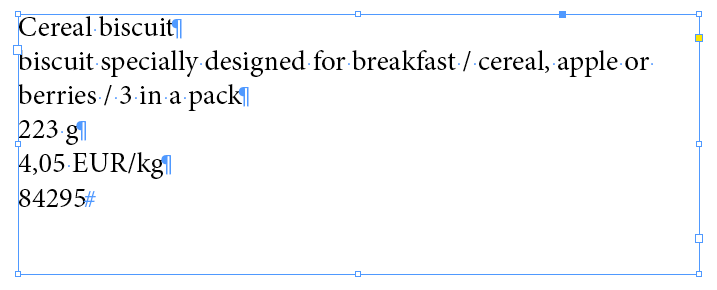
This is how the text comes in, one product description in a separate text story.
The to-do list for every frame
- The first line of text is always the title of the product, so this needs to have its own paragraph style.
- The long line of text that follows is a list of specific characteristics, all separated by spaces and forward slashes. The spaces and forward slashes need to be deleted and we need to put a hard return instead to put each characteristic on its own line (so we can use a bulleted list paragraph style).
- The weight of the product (here in grams) needs to be included in the bulleted list but needs a different color. In fact, both the bullet and the text itself need a different color. For this we need to apply a different red bulleted paragraph style. Also, the weight of the product is not always in grams; it could also be in kilograms (kg), liter (l) or milliliter (ml).
- Next line is the price per kilogram (or liter). This line needs a different paragraph style too.
- Last line is the product number. This is always a 5-digit number that not only needs its ownparagraph style, but we also need to add “nr. ” before the number.
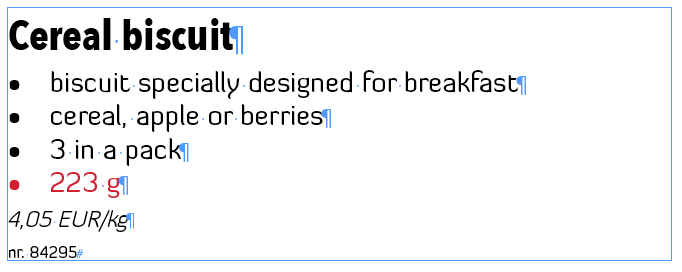
This is how the layout looks after applying the styles and changing the text.
So in total we need to apply 5 different paragraph styles and we need to change the text itself (replace the forward slashes with returns and add the number prefix). You could do this with five different Find/Change operations, but it would be tedious! So instead, we were able to use the FindChangeByList script. This script comes with InDesign (so everyone already has it). The script uses a text file that holds a list of “typed out” find/change commands that you can edit. These commands can be text, GREP, or glyph level find/change commands.

If you want to see the actual text file that describes the list of find/change commands, you can find it by opening the scripts panel (Window > Utilities > Scripts), then opening up the Application > Samples > JavaScript > FindChangeSupport folder. You can right-click on the FindChangeList.txt file and choose “reveal in Finder” (or Explorer if you’re on a PC). In this text file you’ll discover the commands that the FindChangeByList script will execute. (You run the script itself by double-clicking the script in the Scripts panel in InDesign.)
After backing up the original FindChangeList.txt file (in case I needed it again), I deleted all the previous commands at the bottom of the text file and was then ready to put in my new commands. For easy notation I used the RecordFindChange script, written by Martin Fisher (Mike Rankin talked about this in this article). This copies my GREP expression from the Find/Change dialog box to a new empty text field in a text editor so I can select it and paste it in the FindChangeByList script text file. That way I can build my own list of find/change commands quickly. Following is a list of commands I used.
1. Finding the title line with GREP
Find: \A.+
Change: I chose the title paragraph style to apply it to the text.
Explanation
\A This expression is actually not documented in the InDesign help file, nor is it available in the GREP “@” flyout menu. It is also one of the rare GREP expressions where you need an uppercase letter for it to work. Normally using an uppercase letter would make the expression negative. (For example, \D which mean find everything that’s not a digit). However, the meaning of \A is “find text starting at the beginning of the story”. Then .+ Means that it can be any character(s).
2. Finding the product characteristics with GREP and applying the bullet style in order to get a bulleted list
Find: / .+?
Change: I chose the bulleted list paragraph style to apply it to the text.
Explanation
/ This finds a space followed by a forward slash followed by a space (all literal text).
.+ Means that the slash is followed by one or more other character(s).
? Is added to limit the search to every instance of the space-slash-space. If you leave the ? out it would find one instance of the text going from the first space-slash-space to the text of the last one at the end of the paragraph. But we need to replace each instance of the slash with a return (enter), so we would need to find the individuals instances of the slash.
3. Replacing the slashes with enters
Find: / (.+?)
Change: \r$1
Explanation
Find / (.+?) Finds the same text as the previous GREP expression — but this time we added parenthesis around the “any character(s)” expression because we want to make a reference to this in the change field.
Change \r$1 The $1 will put back whatever was in the parenthesis in the find field (in this case the text after the slash) and precedes it with an enter. The slash gets deleted (because I don’t make any reference to it here).
4. Finding the weight of the product and applying the right style
Find: ^\d+ (g|kg|l|ml)
Change: I chose the weight paragraph style to apply it to the text.
Explanation
^\d+ Finds any digit at the beginning of the paragraph, followed by a space.
(g|kg|l|ml) Followed by g, kg, l or ml (the vertical bar between the letters acts like an “or”)
5. Finding the price of the product and applying the right style
Find: ^\d+,\d+ EUR/(kg|l)
Change: I chose the price paragraph style to apply it to the text.
Explanation
^\d+,\d+ Finds any digit followed by a comma, followed by another digit at the beginning of the paragraph
EUR/(kg|l) Followed by a space, the EUR/ text and then kg or l
6. Finding the product number, giving it the right style and adding nr. as a prefix
Find: ^(\d{5})
Change: I chose the number paragraph style to apply it to the text and added the GREP nr. $1
Explanation
^(\d{5}) Finds any 5 digit long number at the beginning of the paragraph.
nr. $1 Will put the text “nr. ” followed by whatever was between the parenthesis in the find field (in this case the original 5 digit number).

The final text file. I marked the added text in red for clarity.
Finishing it
When I was done copying all these commands to my FindChangeSupport.txt file I saved it and closed it. Now it was time to test it out. I went back to InDesign, created a fresh product text frame from the client, opened up the Scripts panel and double-clicked my FindChangeByList script. Et voilà! Instant layout! Needless to say that the client was extremely happy because he had to layout dozens of these every week.
So you see that with a little GREP knowledge and a few free scripts you’ll be able to save a great amount of time!
This article was last modified on December 21, 2021
This article was first published on December 17, 2012
Commenting is easier and faster when you're logged in!

Recommended for you

InDesign Magazine Issue 69: Wireframing and Prototyping
We’re happy to announce that InDesign Magazine Issue 69 (January, 2015) is now a...

GREP Query Runner
This is a much simpler version of the Query manager. It displays a list of all y...
The Mystery of the Trailing Space Contest Answer and Winner
Solve this InDesign mystery for a chance at winning a great prize.